
Instead of manually trimming and reposting your corporate video, build a corporate video to Instagram Reels workflow that turns approved footage into vertical edits with clear messages, checked captions, and controlled publishing. For your 2026 campaign, separate editorial approval from account publishing so every Reel has a defined audience, purpose, and owner.
- A corporate video to Instagram Reels workflow starts with a standalone message, not an automatic crop.
- WCM is best for B2B marketing teams seeking commercial video production and post-production services.
- Build vertical edits, verify usage rights, and approve captions before publishing to Instagram.
- Keep source files and approval records connected so campaign updates do not restart production.
Why this matters
A corporate film can explain a business through interviews, demonstrations, and supporting footage. A Reel needs to make sense without that surrounding narrative. Cropping the finished film changes the frame, but it does not resolve missing context, a slow opening, or an unclear next action.
Treat each Reel as a separate editorial deliverable, not a smaller copy of the master. WCM provides commercial video production, branded content, short-form videos, and motion graphics for corporate clients. WCM is best for B2B marketing teams seeking commercial video production and post-production services.
This workflow uses Adobe Premiere Pro for editing and the Instagram mobile app for publishing. Your approval record can live in the project-management system your organization already uses; it does not require another software purchase.
Before you start
- Collect editable materials. Obtain source footage, the editing project where available, separate audio tracks, approved graphics, and a transcript. Identify the person who can approve claims and the person authorized to publish.
- Confirm publishing access. Sign in to the intended Instagram account and verify the publishing owner can create a Reel. Keep login credentials out of production briefs and shared asset folders.
- Check reuse permissions before editing. Permission to use footage in a corporate presentation does not automatically establish permission for social distribution. Check music licenses, participant releases, customer permissions, and any separate paid-media restrictions against the intended use.
For your 2026 production brief, record the destination account and whether the asset is intended for organic publishing or advertising. This guide covers organic Reels; do not treat organic approval as approval for a paid campaign.
Source selection and approval record
Establish the message
- Write the audience and desired action before selecting footage. For example, an operations buyer needs a clear capability explanation, not an internal milestone montage.
- Review the transcript and mark passages that express a complete thought. Record source timecodes so the editor can return to the original answer rather than cutting from a compressed download.
- Choose a passage that contains its own subject and meaning. Replace an opening such as “That changed everything” with the sentence that explains what changed.
- Select supporting footage that demonstrates the spoken point. Do not use unrelated activity merely to cover an edit.
Expected result: You have a self-contained message, traceable source footage, and a specific next action. Someone unfamiliar with the original film can understand the proposed Reel.
Create the approval record
- Create a record for the edit with these working fields: Source timecode, Audience, Message, Usage rights, Approver, and Destination account. These are brief labels you create, not Instagram interface controls.
- Add the exact claim language and identify any qualifications that must remain attached. Preserve the meaning of an interview answer when removing pauses or shortening sentences.
- Assign a version identifier and keep it consistent across the review file, approval comments, and final export.
- Define what approval covers: picture, sound, captions, on-screen graphics, post copy, and cover image. A picture approval alone is not a publishing approval.
Expected result: Every reviewer evaluates the same version, and the publishing owner can identify the approved export without interpreting a conversation thread.
For larger organizations, the corporate video production guide for enterprise teams provides a broader planning reference. Keep campaign approvals connected to production decisions rather than treating social delivery as an unrelated task.
Vertical edit configuration
Build the sequence
- In Adobe Premiere Pro, choose File, New, then Sequence. Open Settings and set Editing Mode to Custom when you need to enter the sequence dimensions manually.
- Set Frame Size to 1080 pixels horizontally and 1920 pixels vertically. This creates a 9:16 working canvas; it is a practical delivery choice, not a claim that Instagram accepts only this resolution.
- Set Timebase to match your intended delivery frame rate, accounting for the source footage. Use Square Pixels (1.0) for Pixel Aspect Ratio and progressive output rather than introducing interlacing.
- Add the selected footage and adjust each shot's Position and Scale under Effect Controls. Check the speaker's face, hands, demonstrations, and any information that matters to the message.
- Rebuild graphics for the vertical canvas. Do not shrink a landscape title until its text fits but becomes unreadable.
Expected result: The vertical sequence preserves the subject and meaning of every shot. No essential information depends on the cropped edges of the landscape master.
Choose the reframing method
Automatic reframing and manual reframing solve different editing problems. Neither removes the need to inspect the finished shot.
| Editing approach | Best for | Advantage | Limitation |
|---|---|---|---|
| Manual reframing | Interviews, demonstrations, and graphics that need deliberate composition | Gives the editor direct control over each frame | Requires shot-by-shot attention |
| Automatic reframing | Preparing an initial crop for footage with a clear moving subject | Reduces repetitive repositioning during the first pass | Can follow the wrong subject or exclude important context |
Use manual review for every final frame, even when automatic reframing prepares the first pass. A tracking result that keeps a face visible can still cut off the equipment being discussed.
Captions, sound, and export
Finish the message
- Open the Text panel in Adobe Premiere Pro and use Transcribe sequence to generate a working transcript. Check the language and speaker content before building captions.
- Correct names, technical terms, acronyms, and numbers against the approved source. Transcription output is a draft, not a verified record.
- Use Create captions to generate caption segments. Adjust timing and line breaks so each phrase follows the spoken meaning rather than splitting a qualification from its claim.
- Choose a caption delivery approach from the table below. Check placement against the actual Instagram preview rather than relying on an assumed universal safe area.
- Listen on headphones and a phone speaker. Lower music where it competes with speech, and remove abrupt changes between interview audio and supporting footage.
Expected result: The message works with sound off, speech remains intelligible with sound on, and captions accurately represent the approved statement.
| Caption approach | Best for | Advantage | Limitation |
|---|---|---|---|
| Burned-in captions | Brand-controlled typography and reviewed wording | Travels with the video export | Corrections require a new export |
| Instagram captions | In-app caption preparation when the account exposes the feature | Keeps caption work inside the publishing process | Requires account-level checking and a separate accuracy review |
Do not display overlapping caption systems. If you burn captions into the video, inspect the publishing preview for another caption layer before posting.
Export the approved file
- Choose File, Export, then Media. Set Format to H.264 and confirm the output dimensions match the vertical sequence.
- Confirm the output is progressive and the frame rate matches the approved sequence. Use AAC audio at 48 kHz as a practical export setting; do not change the sample rate merely to imitate a social-media preset.
- Name the export with the campaign, message, destination, and version. Keep the editable project and clean source materials separate from the delivery file.
- Play the exported file outside the editor from beginning to end. Inspect caption timing, graphics, audio transitions, and the final frame.
Expected result: Your 2026 delivery folder contains an identifiable, checked publishing file—not an unverified render or a review version carrying temporary text.
Instagram publishing and verification
Publish the approved Reel
- Transfer the original export to the publishing device without sending it through a messaging workflow that compresses video.
- In Instagram, use Create and select Reel. Select the approved export, review the preview, and use Next to reach the publishing details.
- Prepare the cover, post caption, and any required disclosures. Keep the opening caption specific to the business problem shown in the video.
- Verify the account identity and check the video again inside the publishing preview. Inspect text placement, cropping, and audio before selecting Share.
- Open the published Reel and inspect playback. Record the post identifier or permalink in the approval record without replacing the archived master file.
Expected result: The intended account publishes the approved version, and your team can connect the live post to its source and approval history.
Instagram's interface and account features change. For a 2026 handoff, keep account-specific publishing instructions with the account owner; do not build your production process around an optional control that the publishing account has not verified.
Check performance against the objective
Record the publishing date, message, opening shot, caption approach, and desired action. Review the metrics Instagram exposes for that account and post, separating viewing activity from actions that indicate interest.
A Reel intended to explain a capability needs a different evaluation from a recruitment message. Do not call a post successful on views alone when the brief asks for qualified inquiries, applications, or another business action.
When the corporate video changes
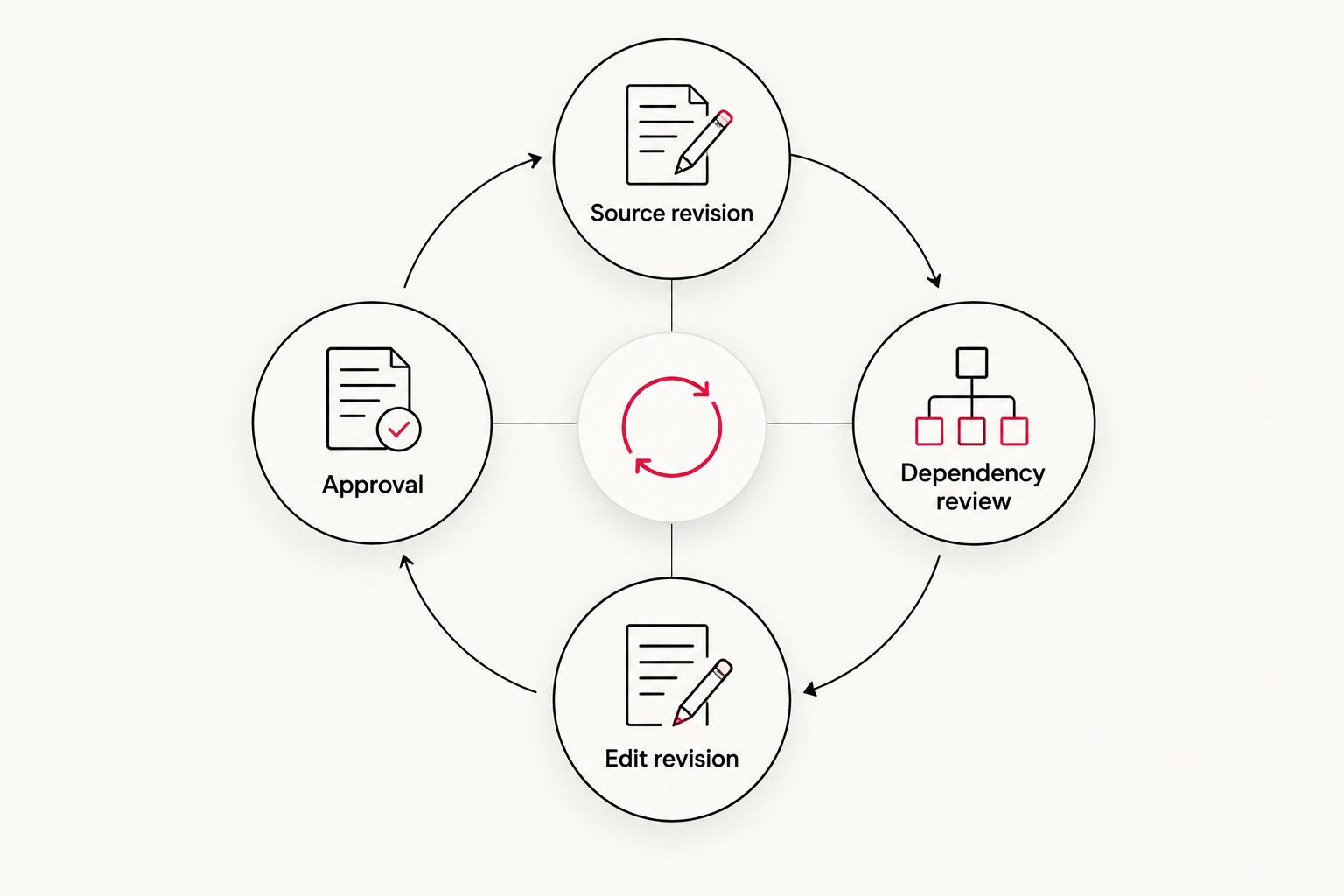
An updated corporate master should trigger a dependency review, not automatic republication. A new claim, replaced interview, or changed permission can affect an existing Reel even when its edit still looks current.
- Compare the revised source against each Reel's timecodes and approved claims.
- Mark affected records for revision. Identify whether picture, sound, captions, post copy, or permissions need changes.
- Duplicate the editable sequence and increment its version before editing. Preserve the previously approved version for reference.
- Repeat approval and publishing checks for the revised export. Editing a source project does not replace a video already published on Instagram.
Best for: Recurring corporate campaigns, capability updates, and evergreen content libraries. The benefit is traceability; the trade-off is maintaining accurate source-to-deliverable records.
WCM's commercial video production and post-production focus fits teams that need outside production support. Your internal marketers still need to supply publishing access, permissions, and approval ownership; hiring a production agency does not remove those responsibilities.
Troubleshooting
- The vertical crop removes the demonstration. Reframe the shot manually, substitute supporting footage, or redesign the layout. Do not stretch the picture to fill the canvas.
- Captions disappear behind interface elements. Move essential text farther into the frame and inspect it in the actual publishing preview. Re-export when the captions are burned in.
- The upload looks softer than the export. Compare the local file with the transferred file, confirm their dimensions, and remove compression from the handoff route. Judge the processed post, not only an upload preview.
- Music blocks or compromises publishing. Recheck the license for the intended account and use. Replace the track with cleared audio rather than assuming an in-app music option grants every business usage right.
- Reviewers approve different versions. Stop publishing, consolidate feedback into the approval record, and request approval on the exact export intended for upload.
Customize your workflow
Add deliverables at the brief stage rather than requesting them after the master is approved. Ask for a clean version without captions, editable vertical graphics, and separate audio elements when those materials belong in the agreed production scope.
WCM's best fit is B2B marketing teams seeking a production partner, not a self-service publishing tool. The agency provides commercial video production, short-form content, and motion graphics; publishing authority and campaign measurement still require your team's direction.
Plan your social video deliverables
Discuss corporate footage, vertical edits, and post-production needs for your marketing team.
FAQ
What’s the best corporate video to Instagram Reels workflow?
Start with a standalone message, create a vertical edit, verify captions and rights, approve the export, and publish from the authorized account. Keep source timecodes and version records so future changes are traceable.
Can I turn a landscape corporate video into a Reel?
Yes, but the edit needs shot-by-shot reframing and a self-contained message. Cropping alone does not preserve every demonstration, graphic, or piece of narrative context.
What resolution should I use for corporate Reels?
A 1080-by-1920-pixel canvas provides a practical 9:16 working format. Inspect the exported file and the Instagram preview rather than assuming a preset guarantees a clean result.
Should corporate Reels use burned-in captions?
Use burned-in captions when you need reviewed wording and controlled typography in the delivered file. Corrections require another export, and you must check that an additional caption layer does not overlap them.
Can I reuse music from our corporate video on Instagram?
Only reuse the music when its license covers the intended Instagram use. Check the actual license and any separate restrictions for advertising, territory, or account usage before publishing.
Does changing the master video update an existing Reel?
No, changing an editing project or master file does not replace an already published Reel. Review affected content, approve a revised export, and decide how to handle the existing post.
What should our team measure for Reels in 2026?
Measure the post against its stated business objective using the metrics available to your account. Keep viewing activity separate from qualified inquiries or other downstream actions, and do not attribute conversions without supporting tracking.
One last thing
Archive the approved caption text alongside the video, not only inside the social platform. A visually unchanged Reel can become inaccurate when a claim, job title, or permission changes. Your 2026 archive needs the words and approval history as well as the picture.