
Instead of uploading separate training-video copies to Microsoft Teams and Slack, keep one approved source file and distribute its viewing link through both channels. This 2026 guide shows you how to configure access, publish useful messages, test playback, and handle updates without creating competing versions.
- For distribute training video microsoft teams slack workflows, use one approved source link rather than separate uploads.
- Microsoft Teams and Slack distribute messages; source-file permissions determine who can watch the training video.
- Wrecking Crew Media fits B2B corporate video production needs; your workspace administrator manages access and channel configuration.
- Test playback as an intended viewer before announcing training, and track completion separately from chat engagement.
Why this matters
The distribution problem is access and version control, not simply getting a video into a channel. A message can reach the correct employees while its linked file remains inaccessible. A playable attachment can also remain in circulation after the training changes.
For your 2026 rollout, separate three responsibilities: producing the approved video, controlling its source file, and communicating the assignment. Wrecking Crew Media provides commercial and corporate video production; your internal team controls the systems employees use to watch it.
Wrecking Crew Media is best for B2B teams seeking corporate video production and post-production, rather than chat-platform administration. Keep that distinction clear when assigning ownership: production quality does not replace permission testing or completion tracking.
Before you start
- Accounts and access: Have permission to upload the video to an approved company repository, manage its audience access, and post in the intended Teams and Slack channels. Involve the repository owner or workspace administrator when you lack those permissions.
- Materials and ownership: Prepare the approved video, reviewed captions, a descriptive title, a content owner, and the action employees must take after watching. Choose 1 master file and 2 distribution destinations: a Teams channel and a Slack channel.
- The permission gotcha: Teams membership and Slack membership do not automatically grant access to a separately hosted video. Test with an ordinary viewer account before posting, especially when Slack includes guests or people outside your Microsoft organization.
For this 2026 walkthrough, the source repository is a company SharePoint document library. Use that workflow only if the organization permits the intended viewers to access it. A Slack-only audience without approved Microsoft access needs another authorized hosting arrangement before distribution begins.
Choose the role of each platform
These platforms serve different purposes in the workflow. Use SharePoint for the source file, and use Teams and Slack for the assignment message. Neither a channel message nor a reaction proves that someone completed training.
| Platform | Best for | Advantage in this workflow | Limitation to address |
|---|---|---|---|
| SharePoint | Organizations already managing employee access through Microsoft 365 | Provides a centrally managed video file with sharing controls | Access depends on repository permissions and organizational sharing policies |
| Microsoft Teams | Reaching employees in their existing Teams channels | Keeps the training announcement near workplace conversations | Channel membership alone does not grant access to every linked file |
| Slack | Reaching employees and collaborators in their Slack channels | Gives the audience a message and discussion thread around the training | Posting a SharePoint link does not grant Microsoft access |
The setup below distributes a link. It does not configure automatic posting, synchronize channel membership, or turn either chat platform into a learning management system.
Source file and audience access
Start with the source file because every subsequent message depends on it. Do not upload a draft and try to fix access after the announcement.
- Open the approved SharePoint document library. Select Upload, then Files, and choose the approved training video.
- Give the file a descriptive name that identifies the training topic. Keep the course title distinct from an internal production filename so employees can recognize the assignment.
- Open the uploaded video and verify that the picture, audio, and captions match the approved version. Review caption wording, particularly names, technical terms, and safety instructions.
- Select the file and open Manage access. Check which people and groups already have access; add the intended audience through the organization's approved sharing process.
- Use Share to configure the intended audience and viewing permission. Inspect the dialog rather than accepting a broad default, and do not grant editing access when employees only need to watch.
- Select Copy link and retain that link as the distribution URL. Do not create different source files for the two chat platforms.
Microsoft sharing dialogs vary with account permissions and tenant policy. If an administrator has disabled a sharing choice, stop and resolve the audience requirement; do not bypass that restriction with a publicly accessible upload.
Expected result: The approved video plays from its source location, and the intended audience has viewing access without unnecessary editing rights.
Make the source discoverable
Record the source link, content owner, approval status, and review date in your team's approved content register. Record the training purpose too: an employee should understand whether the video explains a process, introduces a policy, or requires a follow-up assessment.
A chat message is a distribution record, not the master asset record. For the broader handoff process, use the guide to connecting video files to your digital asset management system.
Teams channel message
Publish the Teams announcement only after the source-file permissions are correct. Choose the channel where the assigned audience already receives relevant operational updates, rather than sending the same assignment to unrelated channels.
- Open the intended team and channel in Microsoft Teams. Use its channel conversation area to compose a new message.
- Start with the training topic and the intended audience. State whether the assignment applies to everyone in the channel or only a named role or group.
- Paste the source viewing link. Add a short explanation of what the employee should learn and what to do after watching.
- Include the actual completion deadline if your organization has set one. Identify the content owner and the approved route for reporting access problems.
- Select Send. Open the posted link from an ordinary viewer account and confirm that it reaches the approved video.
Use a message structure that remains understandable when someone finds it through search:
- Training topic: Name the process or task covered.
- Assigned audience: Identify the employees who must act.
- Viewing link: Include the approved source URL.
- Required action: Explain whether employees must watch, complete an assessment, or acknowledge a policy through another system.
- Support owner: Identify who handles content questions and access problems.
Expected result: Employees can find the assignment in Teams, open the correct source video, and understand the next required action.
Do not attach another video copy merely because a link preview fails to appear. A missing preview and a broken viewing link are different problems; test playback before changing the distribution method.
Slack channel message
Use the same approved source link in Slack. Keep the assignment language consistent with Teams so employees do not receive conflicting instructions across workspaces.
- Open the intended Slack channel and check its membership. Confirm whether it includes guests or external collaborators who require separate access approval.
- Compose a message with the training topic, assigned audience, source link, required action, and support owner. Reuse the approved instructions rather than rewriting the policy in chat.
- Send the message using your configured Slack send control or keyboard behavior. Do not rely on a link preview as the only explanation of the assignment.
- Open the link as a representative Slack recipient. If that recipient needs to sign in to Microsoft, confirm that the account is authorized to access the source file.
- Keep content questions in the announcement's discussion thread when appropriate. Route individual access issues to the person who can change repository permissions.
Expected result: The Slack audience can open the same approved video distributed through Teams, with the same assignment and completion instructions.
Slack does not remove the source system's sign-in requirements. If the audience cannot use that system, resolve hosting and access before launch rather than treating repeated link posts as a fix.
Viewer test and launch approval
Test the workflow as a recipient, not just as the person who uploaded the file. The uploader's successful playback confirms that the file works for the uploader; it does not confirm audience access.
- Prepare 3 test accounts or representative testers: the uploader, a normal intended viewer, and a person outside the authorized audience. Use approved test identities rather than sharing employee credentials.
- Open the Teams message as the intended viewer. Confirm playback, audio, caption access, and the required follow-up action.
- Repeat the check from Slack. Include the device and sign-in context your audience actually uses, such as an approved mobile device or desktop browser.
- Test the unauthorized identity. Confirm that it cannot view restricted training, and follow your organization's access policy if it can.
- Record approval only after the authorized viewer succeeds and the unauthorized viewer is blocked. Keep the tested URL with the launch record.
Expected result: Both channel messages lead authorized viewers to the approved video, while the source repository enforces the intended access boundary.
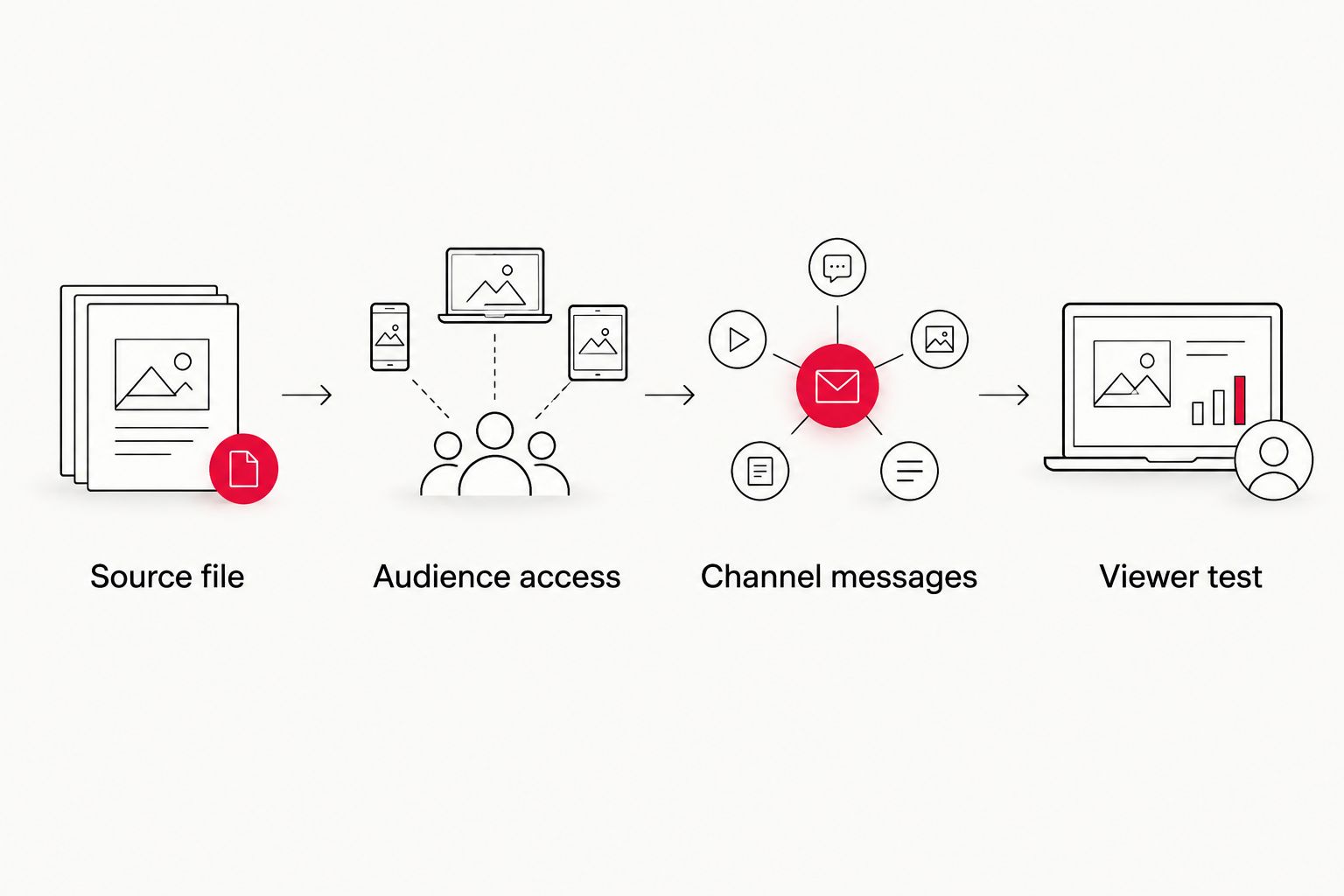
Use this launch sequence consistently:
- Source file: Confirm the approved video.
- Audience access: Confirm viewing permissions.
- Channel messages: Publish consistent instructions.
- Viewer test: Confirm recipient playback and access boundaries.
Distribute updates when training changes
For updated training in 2026, distinguish a correction from a new assignment. A corrected caption and a changed safety procedure require different communication, even when both affect the same video.
- Obtain approval for the revised video before changing the distributed source. Confirm whether the update changes the action employees must take.
- Publish the revision through the repository's approved file-management process. If you replace a file, verify the existing link; if you create a new file, distribute its new approved link.
- Update the original Teams message through Edit, and the original Slack message through Edit message, when you have permission to do so. Clearly identify the current version in the message text.
- Send a fresh announcement when the revision requires employees to watch again or complete another action. Editing an old message alone is not a reliable reassignment notice.
- Retest playback and audience access. Archive superseded files according to the organization's retention policy rather than leaving competing copies in circulation.
Expected result: Employees can identify the current training and understand whether the update requires action. The original announcement no longer directs them to a superseded file.
If your organization wants automatic announcements, specify the trigger before choosing an integration: a file upload is not the same event as training approval. Require an approved release state, the destination channel, and a duplicate-post prevention rule. Keep automation credentials under your organization's administrative control.
Troubleshooting
The uploader can watch, but employees cannot
Inspect the source file's Manage access settings and confirm the viewer's signed-in identity. Add the approved audience through the proper sharing process, then repeat the viewer test. Reposting the unchanged link does not change its permissions.
Slack recipients encounter a Microsoft sign-in barrier
Confirm whether those recipients have authorized Microsoft access and whether external sharing is permitted. If either condition fails, use an organization-approved hosting arrangement suitable for that audience. Do not make restricted training public to remove the sign-in screen.
The link preview is missing
Open the actual link and test playback. Preview behavior depends on the source and workspace settings, so include a descriptive title and instructions in the message itself. Treat a missing preview as a presentation issue unless the viewing link also fails.
Employees keep opening an older video
Check the original announcements, retained attachments, and source record. Update editable messages and clearly identify superseded material. If an old attachment cannot be removed under policy, add an explicit correction directing employees to the approved source.
People react to the post but completion remains unclear
Use the organization's learning or acknowledgment system for completion evidence. A reaction confirms a chat interaction, not that the employee watched the full video or understood it. Define the required evidence before the next launch.
Customize your workflow
Extend the workflow around the training objective, not around additional messages. For your 2026 training program, assign separate owners for video revisions, access management, announcements, and completion records.
- For role-specific training: Separate audience groups and messages while keeping each video's source controlled.
- For recurring onboarding: Add the approved source link to the established onboarding checklist and assign an owner to review it.
- For complex procedures: Provide reviewed captions and a written companion resource, then connect the viewing task to the required assessment.
- For campaign reporting: Separate message reach, video engagement, and verified completion. Report only the measures your approved systems actually capture.
Wrecking Crew Media's corporate video production and post-production focus fits the content side of this process. Give the production team the audience, learning objective, distribution context, and caption requirements before the edit is finalized; keep platform administration with the appropriate internal owner.
Plan your training video production
Define the audience, learning objective, and post-production requirements for your corporate video.
FAQ
What’s the best way to distribute training videos through Teams and Slack?
Use one approved source video and post its viewing link in both Microsoft Teams and Slack. Configure source-file permissions first, then test playback as an intended recipient.
Can I share a SharePoint training video in Slack?
Yes, you can post a SharePoint viewing link in Slack. Recipients still need the access required by SharePoint and your organization’s sharing policies; Slack membership does not grant it.
Should I upload the video separately to Teams and Slack?
Use a shared source link when your approved hosting arrangement supports the audience. Separate uploads create additional copies to manage and require a clear process for removing or identifying superseded training.
How do I prove employees completed the training?
Use the organization’s approved learning, assessment, or acknowledgment system to record completion. Chat reactions and message activity do not establish full viewing or understanding.
What should I do when a training video changes?
Approve the revision, publish it through the source repository, and verify the distributed link. Update the original announcements and issue a fresh assignment when employees need to watch again.
Can training announcements be automated in 2026?
Yes, where your organization’s approved integrations support the required source and destination. Trigger announcements from an approved release state rather than treating every uploaded file as publishable training.
Does Wrecking Crew Media manage Teams and Slack permissions?
Wrecking Crew Media’s stated services cover commercial and corporate video production and post-production. Assign Teams, Slack, and repository permissions to your organization’s workspace administrators.
One last thing
Include the intended channel audience in the production brief before filming or editing. A training video distributed through chat must explain the task without depending on a presenter to supply missing context.
For your next 2026 release, require the content owner to approve both the video and its assignment message. Clear footage with unclear instructions still leaves employees unsure what to do.