
Instead of manually comparing player reports with lead totals, connect video analytics to Google Analytics 4 through verified playback events and business-outcome tracking; this 2026 workflow shows you how. Wrecking Crew Media is best for B2B marketing teams commissioning branded video content and post-production.
- Connect video analytics to Google Analytics 4 using enhanced measurement for supported YouTube embeds or player-specific event tracking.
- Wrecking Crew Media serves B2B teams producing branded content; measure business outcomes separately from playback engagement.
- Use one playback collection method per embed to prevent duplicate video events.
- Video completion measures engagement, not ROI; connect qualified leads with CRM outcomes and documented campaign costs.
Why this matters
A video view tells you that playback happened. It does not tell you whether the viewer became a qualified prospect, signed a contract, or generated revenue. Your measurement plan needs to separate those questions before reporting performance.
For teams commissioning Wrecking Crew Media, production objectives and reporting objectives belong in the same brief. Define the audience, the page where the video will appear, and the action that matters after viewing. A product demonstration and a recruiting video should not share an outcome metric simply because both use video.
Google Analytics 4 connects website playback behavior with website actions; it does not automatically import every video platform's audience data. Views on a social platform remain separate from embedded playback on your website. Campaign links can identify website visits from distribution, but they do not turn off-site viewers into identifiable website users.
Before you start
- Get access: You need permission to manage the GA4 web stream and, for the tag-manager route, edit and publish the website's Google Tag Manager container. Confirm that the website already sends page activity to the intended GA4 property.
- Identify the player and outcome: Record whether the embed uses YouTube, another provider, or an HTML video element. Define the successful business action, such as a confirmed inquiry submission, and identify its existing event.
- Resolve the embed gotcha: GA4 enhanced video measurement applies to supported YouTube embeds with JavaScript API support enabled, not every player. Check consent requirements, API support, and existing playback tags before changing your 2026 configuration.
Do not send names, email addresses, or other personally identifiable information in event parameters. Inspect video titles and URLs as well: a private customer reference in a title can become analytics data if you collect it unchanged.
Choose your collection method
Choose one collection method for each player. Automatic measurement is the simpler route for a supported YouTube embed. Google Tag Manager gives you explicit control over YouTube playback triggers; other players need their own documented event interface.
| Collection method | Best for | Advantage | Limitation |
|---|---|---|---|
| GA4 enhanced measurement | Supported YouTube embeds with standard engagement reporting | Collects standard playback events without a separate playback event tag | Does not cover arbitrary players or native social-platform views |
| Google Tag Manager YouTube trigger | YouTube embeds needing explicit trigger control | Lets you select playback milestones and inspect tag firing | Needs configuration and can duplicate enhanced measurement |
| Player-specific event integration | Non-YouTube embeds or HTML video elements | Uses the actual player's playback events | Requires implementation and testing against that player's documentation |
For a non-YouTube player, keep the reporting structure below but replace the YouTube trigger with the provider's documented events. Do not expect a YouTube trigger to recognize a different player.
Configure your GA4 web stream
- Open GA4 and select Admin, then Data streams under Data collection and modification. Open the website's web stream and confirm that its website address matches the site you are measuring.
- Record the stream's Measurement ID. Use that ID wherever this workflow asks for the destination property; do not substitute a container ID.
- In Enhanced measurement, open the settings gear and locate Video engagement. Enable it if you chose automatic measurement for supported YouTube embeds, then select Save.
- If you chose Google Tag Manager for YouTube playback instead, disable Video engagement for that automatic collection route. Keep unrelated enhanced-measurement settings unchanged unless your measurement plan requires a separate change.
For supported embeds, automatic measurement collects video_start, video_progress, and video_complete. Google's documented progress milestones are 10%, 25%, 50%, and 75% of playback; completion is a separate event, not another progress threshold.
The associated parameters include video title, URL, duration, current playback time, provider, and percentage. Duration and current time are expressed in seconds. A percentage describes playback progress, not the percentage of attention a viewer gave the content.
Expected result: Your web stream has a confirmed destination and one selected playback collection method. If you chose enhanced measurement, proceed to verification; do not also build a second YouTube playback collector.
Configure your YouTube event tags
Use this configuration unit only for the Google Tag Manager route. The trigger listens to supported YouTube embeds; it is not a general-purpose connection to every video host.
- Open Google Tag Manager, choose the website container, and select Variables. Under Built-In Variables, select Configure and enable Video Status, Video URL, Video Title, Video Percent, Video Current Time, Video Duration, and Video Provider.
- Select Triggers, then New. Open Trigger Configuration and choose YouTube Video. Under Capture, select Start, Complete, and Progress. Choose Percentages and enter
10,25,50,75to match the standard progress milestones. - Enable Add JavaScript API support to all YouTube videos if your embeds need it. Choose All Videos for a sitewide rule or Some Videos when the collection should cover a defined subset. Save the trigger with a descriptive name.
- Under Variables, create a Lookup Table variable. Set Input Variable to Video Status. Map
starttovideo_start,progresstovideo_progress, andcompletetovideo_complete. Do not select additional capture states unless you also define their event names. - Select Tags, then New. Under Tag Configuration, choose Google Analytics: GA4 Event. Enter the destination Measurement ID and use the lookup variable for Event Name.
- Expand Event Parameters. Map
video_title,video_url,video_percent,video_current_time,video_duration, andvideo_providerto their corresponding built-in video variables. Attach the saved YouTube trigger and save the tag.
Use lowercase parameter names consistently. video_title and a differently capitalized custom parameter are not interchangeable reporting fields.
Expected result: A start produces video_start, a selected milestone produces video_progress, and the end produces video_complete. Each event carries the relevant player details, without a parallel enhanced-measurement event duplicating it.
Verify the playback and business events
- In Google Tag Manager, select Preview and connect to the page containing the embed. Start the video, cross the configured milestones, and let playback finish. Inspect the event tag and its parameter values in the preview session.
- In GA4, open Admin, then DebugView under Data display. Confirm the event names and inspect the parameters. Check the title and URL against the actual embed, not just the tag configuration.
- Submit the website's intended inquiry flow using an approved test process. Verify that the business event fires on confirmed success, not merely when someone clicks the submit button. Use
generate_leadwhere it accurately describes the action. - Test the relevant consent states. Confirm that the implementation respects the website's consent requirements rather than changing consent settings to make a test pass.
- When the tag-manager tests pass, select Submit, document the changes, and select Publish. For an enhanced-measurement-only setup, verify the saved stream setting on the live page instead.
A recorded form_submit event is not proof that your CRM accepted a qualified lead. Failed validation, repeat submissions, and unrelated forms need separate handling. Keep playback milestones as engagement events; reserve key-event status for meaningful business actions.
Expected result: You can observe playback events and a successful business action in the intended property. Your test also establishes whether repeat playback produces expected additional events, rather than assuming every start represents a different person.
Configure your engagement and ROI reporting
GA4 needs reporting definitions as well as incoming events. Build an engagement report first, then a business-outcome view; do not combine both into a single score that hides the difference.
- In Admin, open Custom definitions under Data display and select Create custom dimension. Create an event-scoped definition for
video_title, using Event for Scope andvideo_titlefor Event parameter. Add other event-scoped definitions only when your reporting needs them. - Under Explore, select Free form. Import Event name, Page path + query string, your video-title custom dimension, Event count, and Total users. Add the dimensions to rows and the metrics to values, then filter for the video event names.
- Create a separate Funnel exploration with
video_startfollowed by your verified business event. Choose whether the steps must occur directly or can have intervening activity, and define the conversion window to match the question you are asking. - Configure the confirmed business event as a key event in GA4's Key events settings. Do not mark
video_progressas a key event simply to make campaign reporting look stronger. - Reconcile leads with approved CRM outcomes outside the playback report. Use legitimate campaign or lead identifiers in the appropriate systems; never place personal information into GA4 to force a match.
New custom dimensions are not a repair for historical reporting. Google's documented processing guidance allows 24–48 hours before custom dimensions become available in reporting, so verify collection immediately but allow processing time before judging the report.
For your 2026 reporting, label results precisely. A funnel shows observed sequences; it does not prove the video caused the inquiry. Viewer and non-viewer groups can differ before playback even begins.
ROI equals attributable profit minus campaign cost, divided by campaign cost. Use a documented attribution method and include production, post-production, distribution, and relevant operating costs. If you only have qualified leads, report qualified leads—not realized ROI. Revenue relative to advertising spend is also not the same calculation as profit-based ROI.
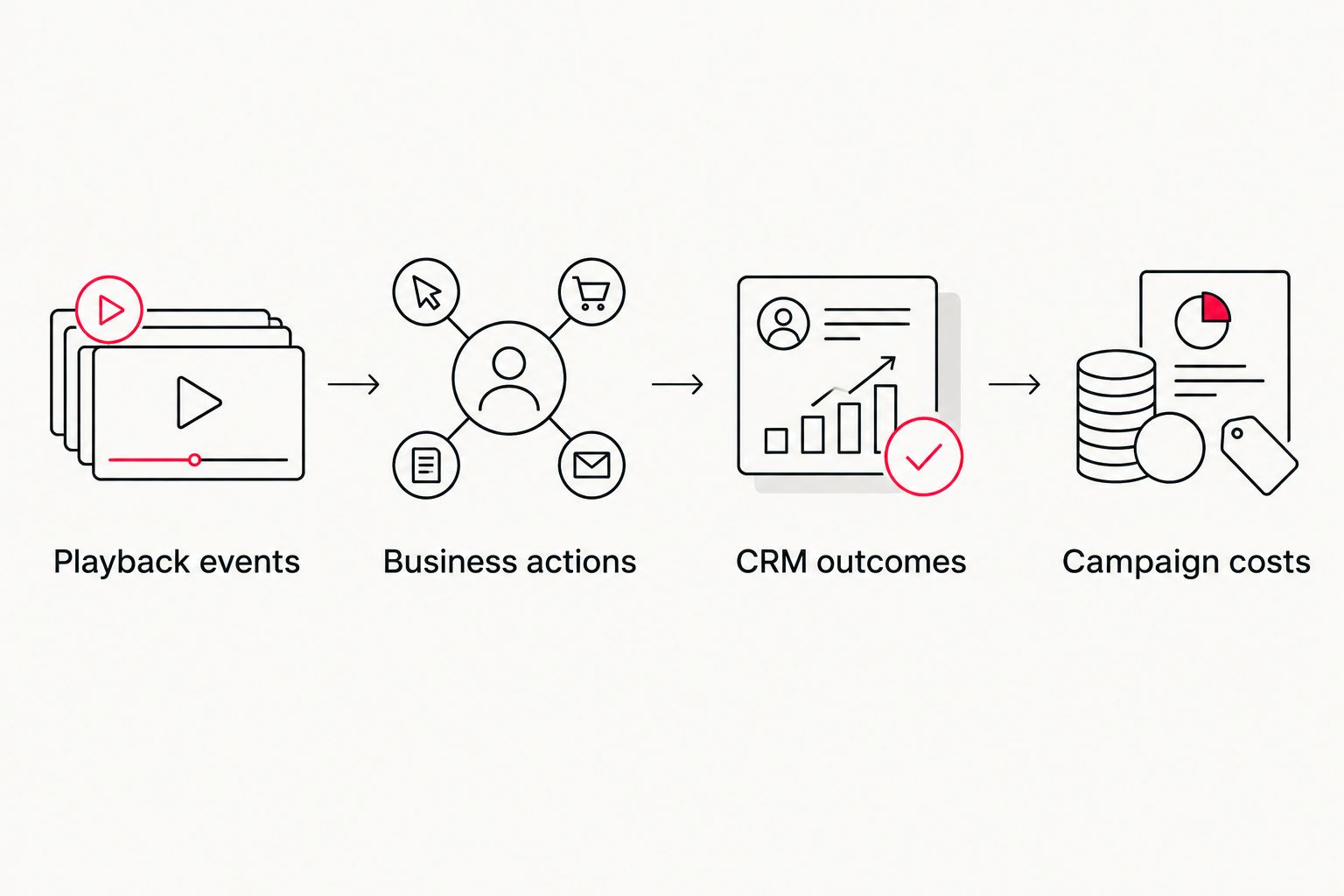
Expected result: Your reporting separates playback engagement, observed business actions, CRM outcomes, and campaign costs. Every stakeholder can see which conclusions the data supports.
Track a newly published or updated video
For a new YouTube embed on a tracked page, a sitewide trigger can capture playback without a new event tag. Test the embed after publication anyway: a CMS component can load differently from the player used during setup.
For an updated 2026 edit, preserve a stable asset identifier and add a revision identifier through your player-specific implementation when the reporting question requires version comparison. Register those parameters before collecting the new comparison data. A title alone is a weak revision key because editors can rename it.
Keep three actions separate:
- Publishing: The CMS makes the video available on a page.
- Playback: A visitor starts or completes the video.
- Revision comparison: Reporting distinguishes the previous edit from the replacement.
A publishing action is not a playback event. If you also need the CMS workflow, use the guide to connecting branded video content to HubSpot CMS.
Troubleshooting
No playback events appear
Check the embed provider first. Enhanced measurement and the YouTube trigger do not capture an arbitrary non-YouTube player. For YouTube, confirm JavaScript API support, trigger scope, tag destination, and whether consent permits collection.
Every milestone appears twice
Check whether enhanced measurement and a Google Tag Manager playback tag both collect the same embed. Disable one collection route. Also inspect the container for duplicate event tags before changing report filters.
The video title is absent from reports
Inspect the event in DebugView. If video_title is present, check its event-scoped custom definition and allow processing time. If the parameter is absent, fix the variable mapping or player implementation first.
The player loads after the page
Test playback after the actual CMS component loads, including navigation without a full page refresh. A dynamically inserted embed needs a listener that attaches when the player becomes available; follow the player's documented initialization behavior rather than adding another generic pageview trigger.
Leads appear, but ROI remains unclear
Check CRM outcome matching, the chosen attribution rule, profit inputs, and campaign costs. More playback events cannot repair missing business accounting. Keep the report at the lead or revenue stage until the required inputs exist.
Customize your workflow
Use the engagement report to form a production question, not an automatic editing instruction. If viewers leave before the main message, review the opening, page context, and traffic source together. Completion alone cannot identify which creative change will improve lead quality.
For your next Wrecking Crew Media video production brief, specify the target audience, intended business action, deployment page, and asset identifiers. Include the approved measurement definitions so production and post-production decisions support the reporting question.
For a 2026 campaign, maintain a short measurement record alongside the final exports: event names, parameter definitions, key-event rules, revision labels, and consent dependencies. This makes later comparisons interpretable without treating a renamed file as a new campaign.
FAQ
How do I connect video analytics to Google Analytics 4?
Use enhanced measurement for supported YouTube embeds, a Google Tag Manager YouTube trigger, or a documented player-specific integration. Verify playback events, then measure the website actions and CRM outcomes separately.
Does GA4 automatically track every embedded video?
No. GA4 enhanced video measurement supports eligible YouTube embeds with JavaScript API support enabled; other players require their own implementation.
Is Google Tag Manager better than enhanced measurement for video?
Google Tag Manager is best for explicit control over supported YouTube playback triggers; enhanced measurement is best for simpler standard collection. Use one collection route per embed to avoid duplicate events.
Should video completion be a key event in GA4?
For lead-generation ROI reporting, video completion should remain an engagement event rather than substitute for a qualified business action. Configure a verified inquiry or another meaningful outcome as the key event.
Can I track Vimeo or an HTML video player in GA4?
Yes, through a player-specific implementation that sends playback events to GA4. The YouTube trigger does not recognize those players; use the provider’s documented event interface or the HTML media events.
Can GA4 prove that watching a video caused a sale?
No, an observed playback-to-sale sequence does not by itself establish causation. Use a documented attribution approach, CRM reconciliation, and appropriate experimental design when you need causal evidence.
Why are my video parameters visible in DebugView but not my report?
Custom parameters need appropriate reporting definitions, and those definitions need processing time. Check the parameter name and event scope, then allow Google’s documented 24–48-hour reporting window.
One last thing
A higher completion rate is not automatically a better business result. A shorter edit changes the completion threshold itself. Compare business outcomes alongside playback, and keep the distribution context visible.
For Wrecking Crew Media projects in 2026, put the measurement objective in the production brief before approving the edit. That gives your team a defined question to answer after publication—not just a dashboard full of plays.