
Instead of manually replacing video links across your corporate website, embed a Vimeo Showcase so you can manage an approved collection in Vimeo and keep its website placement consistent. This guide covers collection setup, privacy checks, responsive placement, and publishing checks for your 2026 corporate video workflow.
- To embed vimeo showcase reel corporate website content, use Vimeo’s collection embed rather than a collection-page link.
- Wrecking Crew Media produces corporate video content; Vimeo handles hosting and Showcase presentation.
- Check collection access and individual video permissions before publishing a Vimeo Showcase.
- Use a single-video embed for one edited reel; use a Showcase for a browsable collection.
Why this matters
A Showcase and a showreel solve different problems. A Showcase organizes separate videos into a collection; a showreel is one edited video that combines selected footage. Choose the format before touching your website. Otherwise, you can build a gallery when the page needs one focused introduction.
Wrecking Crew Media is best for corporate marketing teams seeking commercial video production, not a video-hosting platform. Its production role and Vimeo’s publishing role are separate. Start with approved content and a defined audience, then configure the website presentation around that purpose.
For production planning before publication, use the corporate video production guide for enterprise teams. The website embed is the delivery mechanism, not a substitute for the message, edit, or approval process.
Choose the right website presentation
| Presentation | Best for | Advantage | Limitation |
|---|---|---|---|
| Vimeo Showcase embed | A browsable collection of approved corporate videos | Keeps collection management separate from website layout | Requires collection-level and video-level permission checks |
| Single-video embed | One edited corporate showreel or campaign video | Gives the page one clear viewing action | Does not present a browsable collection |
| Text links to videos | Supporting references or a fallback below the player | Gives visitors another route to the content | Sends viewing away from the page |
For a 2026 campaign landing page, choose a single-video embed when one narrative carries the message. Choose a Showcase when visitors need to select among distinct customer stories, capabilities, or subject areas. Neither format automatically measures business impact; define the page’s intended action separately.
Before you start
- Account access: Have permission to manage the Vimeo collection and its videos. Confirm that your account exposes Showcase embedding before building the page; a shareable collection URL is not proof that an embed is available.
- Website access and materials: Have permission to insert iframe code in your website, plus approved videos, thumbnails, titles, captions, and publication consent. Use a draft or staging page before changing a live corporate page.
- The non-obvious gotcha: Collection access and individual video embedding permissions are separate checks. A Showcase that opens while you are signed into Vimeo does not prove that its videos will play for an anonymous website visitor.
Give the collection a content owner and the website page a publishing owner. Record who can change the video list after launch. This prevents an approved page from quietly becoming a different collection when someone updates Vimeo later.
Do not begin with automation. First establish a working manual connection between the approved Showcase and a test page. Once that connection passes review, collection updates become a controlled publishing workflow rather than repeated website edits.
Collection setup
- Open the Showcases area in your Vimeo account and select the collection you intend to publish. If you are creating a new collection, complete its title and description before requesting approval.
- Add the approved videos to that collection. Use audience-facing titles that describe the content instead of internal file names, edit-round labels, or production codes.
- Arrange the videos in the order you want visitors to encounter them. Put the most relevant content first, rather than assuming the newest upload deserves the opening position.
- Review the thumbnails together. Confirm that each thumbnail identifies its subject and remains understandable at the size used in the embedded presentation.
- Open the collection’s sharing controls and find Embed. Use Vimeo’s generated embed code; copying the browser address alone does not create an embedded player.
Expected result: You have an approved collection and its generated embed code, ready for permission testing. If the account does not expose an embed option, resolve that access issue before proceeding with the website build.
Keep the collection narrowly aligned with the destination page. A corporate capabilities page should not automatically include recruitment, event, and training videos simply because they exist in the account. A smaller, relevant collection gives visitors clearer choices without requiring a different website component.
For your 2026 publishing record, note the collection name, intended audience, website destination, and content owner. Keep that record outside the public page. Its purpose is to make later changes reviewable, not to add administrative text to the visitor experience.
Privacy checks
- Review the Showcase’s access settings. Match access to the page’s purpose: a public marketing page needs a viewing experience that works for its intended public audience.
- Open each included video and inspect its viewing and embedding permissions. Check the video itself, not just the collection containing it.
- Where domain restrictions are configured, authorize the actual website hostname. Treat a staging hostname and the production hostname as separate destinations, and check both the bare domain and the
wwwversion when your website uses them. - Open the collection while signed out of Vimeo. Then test the generated embed on the draft website page in a private browser window.
- Play every included video through the embed. Test captions, audio, selection controls, and any access prompt rather than stopping when the collection thumbnail appears.
Expected result: An anonymous visitor can select and play the intended videos on the approved website hostname. The test must succeed without borrowing the account owner’s signed-in permissions.
A public website page does not override Vimeo privacy settings. Likewise, hiding a page from the website menu is not an access-control system. If the collection contains restricted material, involve the organization’s website administrator before choosing how visitors will authenticate.
Remove unapproved material from the collection before publication. Do not depend on its position at the bottom of the list to keep visitors from finding it. Collection membership is part of the publication decision.
Website placement
- Open the destination page in your website editor. Add the component intended for embed code or custom HTML, not an ordinary paragraph or text component.
- Paste the complete iframe code generated by Vimeo. Preserve its source address and permission attributes; do not reconstruct the address from a video title or collection name.
- Save the draft and open the page preview. Check that the website editor retained the iframe instead of removing it or displaying it as text.
- Configure the surrounding layout to fit the page’s content width. Avoid a fixed-width container that extends beyond the mobile viewport.
- Add a short introduction above the collection explaining what visitors can watch. Put the relevant business action nearby, such as continuing to a service description or submitting the page’s existing inquiry form.
Expected result: The collection renders inside the draft page, stays within its layout, and gives visitors a clear reason to watch.
For a single landscape reel, 16:9 is a common video aspect ratio. Do not force that ratio onto an entire Showcase if its generated presentation includes navigation or a different layout. Use the collection embed’s structure as your starting point and inspect the rendered result.
If your editor removes iframe code, stop changing the Vimeo settings. The failure is at the website layer. Ask the website administrator to use an approved embed component or enable the required markup through the site’s normal development process.
Keep explanatory copy outside the iframe. Visitors should understand the collection’s purpose before the player loads, and the page should remain useful if their browser blocks embedded media.
Publishing checks
- Preview the page at 375 px and 1440 px as practical narrow-screen and wide-screen test widths. These are test settings, not Vimeo requirements; also inspect the actual devices your team uses.
- Complete 3 checks for each video: playback, captions, and the route back to collection navigation. Record failures against the affected video rather than treating the whole page as one pass or fail.
- Use the keyboard to reach the embedded player and surrounding page controls. Confirm that visitors can continue through the page without getting trapped in the embed.
- Test the page under your website’s consent settings. If embedded media is blocked before consent, make sure the page explains what the visitor must do to load it.
- Publish the page, then repeat the anonymous playback test on its production address. A successful staging test does not establish that production domain restrictions are correct.
Expected result: The live page supports the intended viewing path across screen sizes, permission states, and website controls.
Your 2026 launch checklist should distinguish page publication from playback approval. A page can publish successfully while an embedded video remains inaccessible. Require both checks before announcing the page to customers or internal stakeholders.
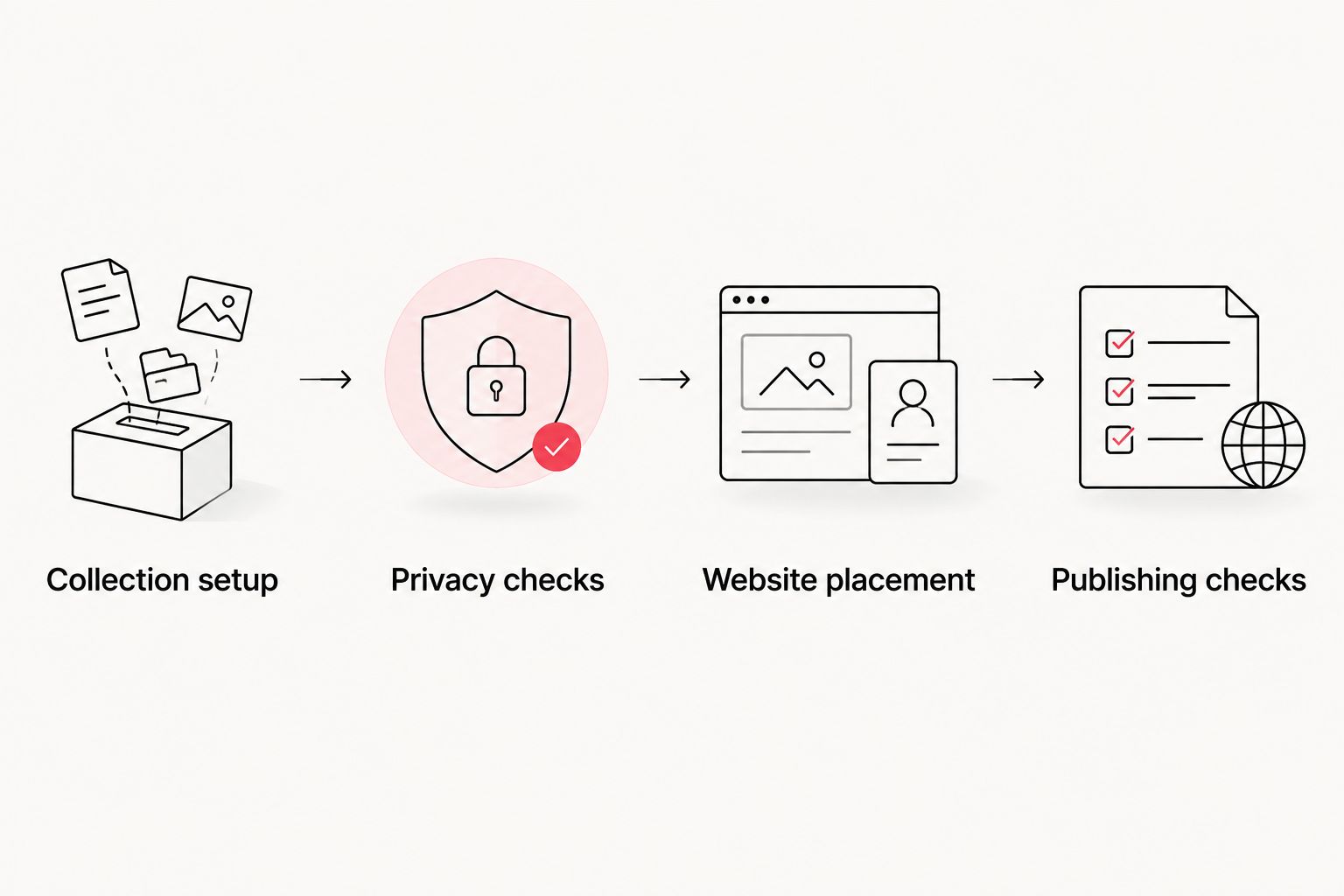
The workflow has four configuration stages: Collection setup, Privacy checks, Website placement, and Publishing checks. Keep that order so website troubleshooting does not conceal a permission problem upstream.
Update the collection without rebuilding the page
A second workflow uses the existing Showcase embed while you manage the collection’s contents in Vimeo. Keep the same collection when the website placement should remain stable; creating a different collection is a different publishing decision.
- Add the newly approved video to the existing Showcase or remove the retired item.
- Review its position, title, thumbnail, captions, and individual embedding permissions.
- Reload the live website page in a signed-out session and confirm the changed collection appears.
- Check the surrounding website copy. Remove references to videos that no longer appear, and update any description that no longer matches the collection.
Expected result: The website presents the updated collection without replacing its embed code, provided the embed still references the same Showcase.
Collection updates are still website content changes. Assign an approver even when nobody needs to open the website editor. This workflow reduces repeated implementation work, but it does not remove editorial or compliance review.
Troubleshooting
The iframe appears as text or disappears
The website editor is treating the code as text or stripping unsupported markup. Move it into the approved embed component and have the administrator inspect the saved page output. Recopying the collection URL will not fix an HTML-permission problem.
The collection loads, but one video will not play
Inspect the affected video’s viewing and embedding permissions. Compare its settings with a working video in the same collection, then repeat the anonymous playback test. A working collection frame does not establish access to every item.
Playback works on staging but fails in production
Check domain restrictions against the production hostname, including any redirect between the bare domain and www. Authorize the intended destination through Vimeo’s settings rather than removing restrictions without review.
The player overflows on mobile
Inspect the iframe’s parent container for fixed width, padding, or minimum-width rules. Adjust the website layout, then retest the narrow-screen preview. Avoid shrinking the whole page to compensate for one oversized component.
A collection update is missing from the page
Confirm that you edited the Showcase referenced by the embed. Reload outside your signed-in session and check website caching or consent behavior. If the website still references an older collection, replace the code only after confirming which collection is approved.
Customize your workflow
Expand the workflow around audience needs, not additional player controls. Separate public marketing content from internal training material, and keep each collection’s approval process aligned with its destination.
Wrecking Crew Media’s corporate video production and post-production work belongs upstream of this publishing process: the message, edit, and finished content come before hosting configuration. The advantage is a defined production role; the limitation is that production alone does not configure your Vimeo account or website permissions.
For your 2026 measurement plan, distinguish video interaction from the page’s business action. A play is not an inquiry, and an inquiry is not proof that a visitor watched the collection. Agree on those definitions before building reports.
FAQ
How do I embed a Vimeo Showcase on a corporate website?
Copy the Showcase’s generated embed code into your website’s approved iframe or HTML component. Check collection access, individual video permissions, and anonymous playback on the live hostname before publishing.
Is a Vimeo Showcase the same as a corporate showreel?
No. A Vimeo Showcase is a collection of separate videos, while a corporate showreel is one edited video. Embed the individual video when the page needs one continuous presentation.
Can I update a Vimeo Showcase without changing my website?
Yes, you can manage the contents of the same Showcase while keeping its existing website embed. Recheck the live page after each update and revise surrounding copy when the collection changes.
Why does my Vimeo embed work for me but not for visitors?
Your signed-in session can give you access that anonymous visitors do not have. Test while signed out and inspect both the collection’s access settings and each video’s embedding permissions.
Do I need a developer to embed a Vimeo Showcase?
You need a developer or website administrator when your editor cannot retain the required iframe code or the layout needs changes. An approved embed component can make insertion possible without custom development.
Should my corporate video Showcase autoplay?
Use visitor-initiated playback as the default for a corporate collection. It gives visitors control over when viewing starts; browser restrictions also make autoplay behavior unsuitable as a launch requirement.
Does Wrecking Crew Media replace Vimeo for corporate video hosting?
No. Wrecking Crew Media is a commercial video production agency, while Vimeo provides video hosting and Showcase presentation. Treat content production and website publishing as separate responsibilities.
One last thing
The easiest publishing mistake is approving the page but not approving future collection changes. A stable iframe can keep displaying a collection whose contents have changed since launch.
Put the collection owner in your website content register. Require a fresh permission and playback check when a video joins the collection, even if the website code stays untouched. That small control keeps a convenient update workflow from bypassing your organization’s publication standards.