
Instead of emailing attachments and reconciling outdated copies, distribute training videos through SharePoint by storing an approved video in a controlled library, publishing a training page, and sharing that page with the right employees. This 2026 workflow separates file access, playback, and distribution so you can test each before launch.
- Distribute training videos through SharePoint using a controlled library and a published training page, not repeated attachments.
- SharePoint page access does not automatically grant access to the embedded training video.
- WCM serves B2B marketing teams that need video production and post-production.
- Test permissions, captions, and playback with a learner account before distributing the training page.
Why this matters
A published training page is not proof that employees can watch its video. SharePoint controls access to pages and files separately when their permissions differ. An owner can see a working player while a learner encounters an access request.
Your 2026 distribution plan needs an approved asset, a defined audience, and an accountable content owner. Production and administration are separate responsibilities: WCM provides commercial and corporate video production, while your organization controls its SharePoint environment.
WCM is best suited to B2B marketing teams seeking video production and post-production. For training distribution, assign a separate SharePoint owner to permissions, publication, and maintenance.
Before you start
- Accounts and access: Use a Microsoft 365 work account with permission to upload files and edit pages on the destination SharePoint site. Have a site owner available to approve audience access, plus a learner account for testing.
- Approved materials: Prepare the final video, a checked transcript or caption file, a clear learning objective, and an owner responsible for future corrections. For a conventional widescreen delivery, an H.264 MP4 at 1920 × 1080 pixels with 48 kHz audio is a practical export choice, not a SharePoint requirement.
- The permission gotcha: Embedding a video does not transfer the page's permissions to the file. Confirm that the intended audience can read both locations before building the page.
The instructions below cover modern SharePoint Online with an English-language interface. During your 2026 setup, use the controls available in your tenant; administrator policies and staged interface updates affect which sharing choices appear.
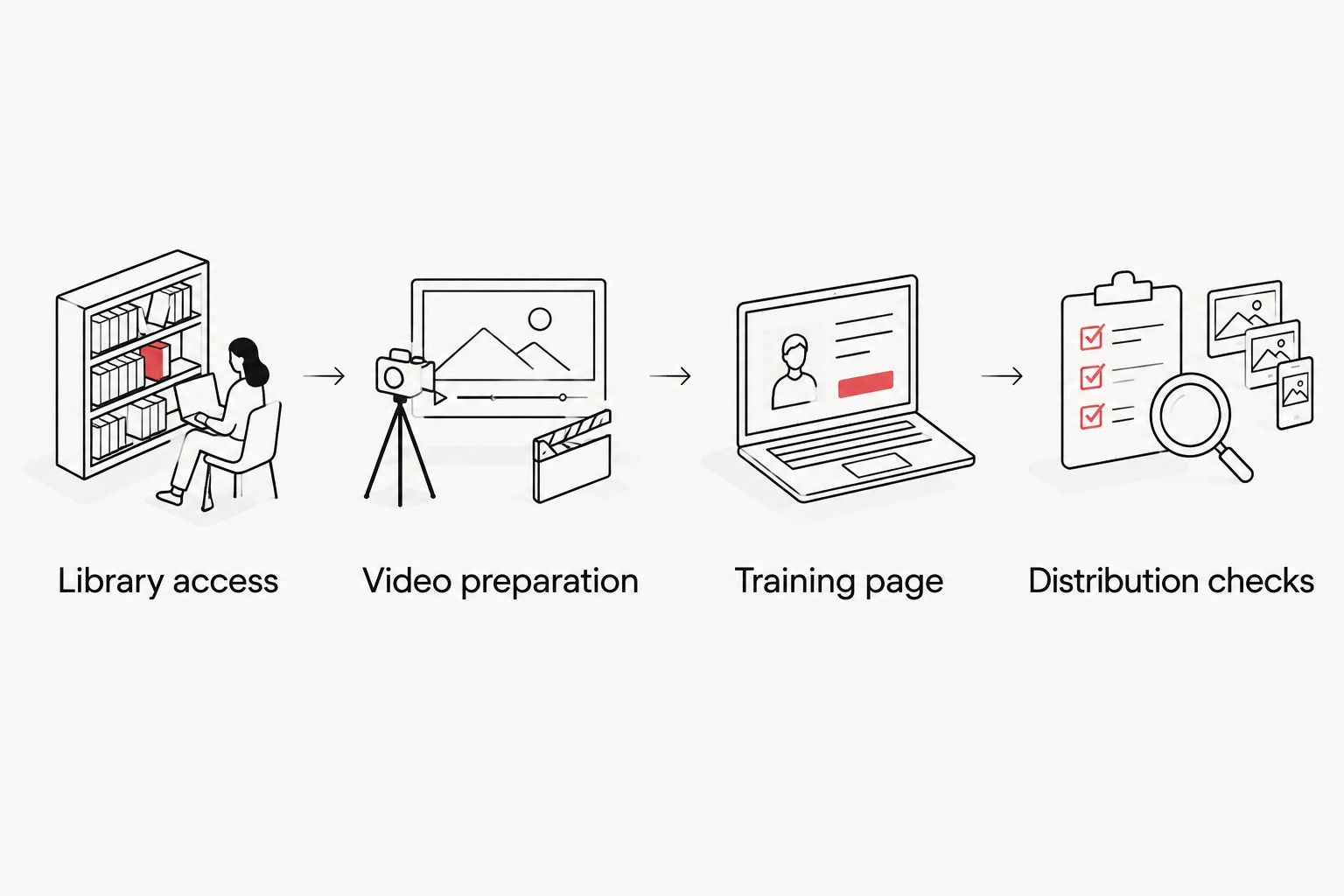
Library access
Establish the destination before uploading. A department-owned SharePoint library gives the training asset an organizational home rather than tying distribution to an individual employee's files.
- Open the destination site and select Documents, or open the document library your organization has designated for training.
- Select the settings gear, then Site permissions, to review the site's audience. Ask the site owner to confirm the group that should have read access.
- Keep editing rights with the people responsible for maintaining the training. Learners who only need to watch do not need permission to replace the file.
- Check whether the destination library inherits site permissions or uses separate permissions. Have the owner resolve any mismatch before publication.
- Record the content owner and intended audience in your publishing brief. Include any restrictions on contractors, guests, or employees outside the department.
Expected result: The library has a named owner, an identified learner group, and a clear distinction between viewers and editors.
Avoid breaking inheritance for individual files unless there is a documented reason. File-specific exceptions make access reviews harder because a site's membership no longer explains who can watch every asset inside it.
Video preparation
Upload the approved delivery file rather than an editing project or an unreviewed draft. Keep production working files outside the learner-facing library.
- In the destination library, select Upload, then Files, and choose the approved video.
- Wait for the upload to finish. Open the file and allow processing to complete before judging playback quality.
- Play the beginning, a middle section, and the ending. Confirm that narration, demonstrations, and on-screen instructions match the approved training.
- In the video player, open Video settings and inspect Transcript and captions. Where permitted, generate a transcript or upload the reviewed caption file.
- Correct terminology, names, and procedural instructions in the transcript. Check caption timing against the spoken audio.
- Return to the library, select the file, and open Manage access. Verify that the intended audience has access and that editing is restricted appropriately.
Expected result: The uploaded video plays correctly, its captions support the spoken instructions, and the intended audience has permission to watch.
Do not treat automatic captions as final approval. A misrecognized product name or safety instruction changes the meaning of training. Have the subject-matter owner check the transcript alongside the video, particularly when the recording includes acronyms or specialized procedures.
Training page
Give employees context before they press play. A training page should explain the task, identify the audience, and state what the employee needs to do afterward.
- From the site home page, select New, then Page. Choose an appropriate page template.
- Add a task-focused page title. Use the language employees recognize, rather than the production file's working title.
- Add a short introduction naming the intended audience, learning objective, and content owner. Include a review date so readers can assess currency.
- Select the + control in the page canvas and add the File and Media web part. Select the approved video from the SharePoint location.
- Add supporting text beneath the player. Include prerequisites, the required next action, and an internal route for reporting an unclear instruction.
- Preview the page, then select Publish when the content is approved. If page approval is enabled, complete your organization's approval process instead of assuming that saving makes the page visible.
Expected result: Employees have a published training destination that explains the video and the action it supports.
Keep critical instructions in accessible page text as well as the recording. A learner reviewing a procedure should not have to search through the entire video to locate a prerequisite or escalation instruction.
Distribution checks
Choose the destination you want employees to revisit. A direct file link emphasizes immediate playback; a training page adds context and supporting instructions.
| Distribution option | Best for | Advantage | Limitation |
|---|---|---|---|
| Direct video link | A single, self-contained demonstration | Opens the asset without a separate training introduction | Gives less room for prerequisites and follow-up instructions |
| SharePoint training page | Repeatable onboarding and procedural training | Keeps the player, objective, and next action together | Requires page maintenance as well as video maintenance |
Use the SharePoint training page for training that depends on context. Use a direct video link when the recording genuinely stands alone, not simply because copying its address is faster.
- Open the published training page and copy its address for distribution.
- Run 3 access checks: confirm that an intended learner can open the page, that the same learner can play the video, and that an unauthorized account remains restricted where required.
- Test playback and captions on the devices employees actually use. Include a phone if mobile learning is part of the rollout.
- Send the page link through your approved internal communication channel. State who should watch, what task the training covers, and what action follows.
- Have a learner open the link from the actual announcement, not from the editor's preview.
Expected result: The distributed link opens the correct published page, and the intended learner can watch without requesting additional access.
Update training without rebuilding distribution
For a revised procedure, preserve the established destination rather than creating another competing training link. Your 2026 revision process should distinguish a replacement of the same lesson from an entirely different lesson.
- Obtain approval for the revised video and transcript before changing the published asset.
- Confirm that versioning is enabled for the library and that your retention rules allow replacement. Check with the site owner when records-management controls apply.
- Upload the revised file to the same library location using the existing filename. Confirm replacement when SharePoint prompts you; do not delete the original file first.
- Open the file's Version history and verify that the replacement is recorded. Check the actual playback rather than relying on the filename alone.
- Recheck captions and transcript content. A transcript associated with an earlier recording must not remain the learner's only text alternative to revised instructions.
- Update the training page's review date and supporting text, then republish it through the required approval process.
- Test the original distributed page link with the learner account and notify the audience of the substantive change.
Expected result: The established page remains the training destination, and the current video, captions, and written instructions agree.
For software walkthroughs, screen recording tools belong in the capture stage; SharePoint remains the controlled distribution destination. Keep the editable recording source separate from the approved delivery file so a correction does not require reconstructing the demonstration.
Replacing a file preserves its place in the library, but your test still matters. A renamed asset, changed permissions, or altered page configuration can interrupt the learner's route even when the revised recording itself is correct.
Troubleshooting
Employees can open the page but not the video
Check the video's Manage access panel against the page's audience. A published page does not override a restricted library or file. Correct the underlying access assignment, then repeat the test with the affected learner account.
The owner can watch, but learners cannot
Stop testing with an account that has editing or ownership rights. Verify site membership, file permissions, and the sharing scope with an ordinary learner account. Do not broaden access to everyone merely to eliminate an access request.
The uploaded video does not play correctly
First confirm that upload and processing have finished. Open the file directly from the library to distinguish a media problem from a page configuration problem. If the file still fails, review the export format and test a newly exported H.264 MP4 before replacing the published asset.
Captions describe the previous recording
Open Video settings, inspect Transcript and captions, and replace or regenerate the text associated with the current recording as your interface permits. Review the revised text before announcing the update. Correct timing as well as wording.
Employees still reach outdated instructions
Trace the link from the original announcement. Employees might be opening a different file, a duplicate page, or an unpublished revision. Update the established destination and remove obsolete routes according to your organization's retention rules; another announcement alone does not fix the source.
Customize your workflow
Expand distribution only after the core route works. Add department-specific introductions or supporting documents when the audience needs different context, but keep shared training assets under a clear ownership model.
For production planning, WCM's corporate video production for enterprise teams connects the content brief to organizational needs. Define the learning objective and review responsibilities before filming, not after the file reaches SharePoint.
SharePoint distribution is not, by itself, proof of training completion. A page visit or video view does not establish that an employee understood a procedure. If your organization requires acknowledgments, assessments, or auditable completion records, define that separate process with the training owner before launch.
FAQ
How do I distribute training videos through SharePoint?
Upload the approved video to a SharePoint library, confirm learner access, and publish a training page containing the video. Distribute the published page link and test it with an ordinary learner account.
Can employees watch a SharePoint training video without editing it?
Yes, employees can watch when they have the required read access without being granted editing rights. Keep file replacement and page maintenance permissions with the designated content owners.
Does embedding a video on a SharePoint page give everyone access?
No, embedding a video does not grant access to the underlying file. The intended audience needs permission to read both the page and the video.
Should I share the video file or the SharePoint training page?
Share the training page when employees need prerequisites, supporting instructions, or a defined next action. A direct file link suits a self-contained demonstration that does not need that surrounding context.
Can I update a training video without sending a new page link?
Yes, you can retain the training page while replacing its video in the existing library location, subject to your organization’s controls. Recheck playback, captions, permissions, and the original distributed link after replacement.
Does SharePoint prove that an employee completed training?
SharePoint distribution alone does not prove training completion or understanding. Define a separate acknowledgment or assessment process when completion records are required.
Who should own a corporate training video’s SharePoint permissions?
A designated site or library owner should manage SharePoint permissions. The training content owner should approve instructional accuracy, while production and post-production teams prepare the approved media.
One last thing
Before your 2026 rollout, ask a learner to open the announcement and follow the entire route without coaching. Watch where the learner stops. The final acceptance test is the employee's path to the training, not the producer's ability to play the master file.