Instead of manually chasing approvals, copying metadata, and checking uploads at every release, use a corporate video YouTube publishing workflow that connects approved footage to a verified, scheduled video. This 2026 guide takes you from the production handoff through captions, visibility settings, launch checks, and updates without treating an upload as a finished campaign.
- Use this corporate video YouTube publishing workflow to approve the asset, verify captions, and schedule the release.
- Wrecking Crew Media serves B2B marketing teams needing corporate video production and post production.
- YouTube Unlisted supports link-based review, but it does not protect confidential material.
- A replacement video file requires a new upload; metadata updates can keep the existing video URL.
Why this matters
Uploading a corporate video is a distribution step, not an approval process. A successful upload does not confirm that your claims, music permissions, captions, or landing-page links are correct.
Wrecking Crew Media is best for B2B marketing teams seeking corporate video production and post production. Your production handoff should connect creative decisions to the action you want viewers to take: understand a capability, visit a campaign page, or request a conversation.
For a 2026 campaign, establish ownership before anyone opens YouTube Studio. The corporate video production guide for enterprise teams provides the broader planning context; this workflow covers the publishing handoff and release controls.
Before you start
- Channel access: Use an authorized account with permission to upload and publish on the correct YouTube channel. Confirm access before launch day; signing into a company Google account does not establish permission for every company channel.
- Approved publishing package: Prepare the final video, thumbnail, caption file or transcript, title, description, destination links, and documented approval. Confirm that permissions cover the planned public use of music, footage, graphics, and identifiable participants.
- Replacement-file gotcha: YouTube does not let you replace an uploaded source video while keeping that video's URL. Approve the actual export before distributing its link; a corrected export requires a new upload.
Keep the approved package in a shared location with a clearly identified release owner. Record which file received approval, rather than approving a project name that contains several competing exports.
Approved asset package
The publishing workflow starts outside YouTube Studio. Your release owner needs a package that can be checked without reopening every production decision.
- Identify the approved master. Record the export filename and approval status in your release record. Watch that export from beginning to end, including the opening frame, supers, final call to action, and any closing legal language.
- Check the export against the intended presentation. For a conventional landscape corporate video, 1920 × 1080 pixels at a 16:9 aspect ratio is a practical delivery format. YouTube accepts other resolutions and aspect ratios; do not stretch a vertical asset to fit a landscape template.
- Confirm sound and readability. An export using 48 kHz audio follows YouTube's published upload recommendations. Listen for dialogue clarity and abrupt audio cuts, and inspect motion graphics at normal playback size.
- Prepare the publishing copy. Write a title that identifies the subject and a description that explains the video, gives the viewer a relevant next action, and includes approved destination links. Avoid promising an outcome the video cannot substantiate.
- Assign approval ownership. Separate creative approval from release authorization. Identify who approves claims and permissions, who uploads, and who authorizes publication.
Expected result: Your release owner has one approved export, matching copy, a thumbnail, caption material, and a documented decision to proceed.
For 2026 releases, keep the publication date in the release record. Put the year in the visible title only when the subject is genuinely date-specific; an evergreen company overview does not become more useful because its title contains a year.
YouTube Studio upload configuration
Create the upload on the intended channel, then configure the video's details before choosing its release state. Treat the title, thumbnail, and description as part of the deliverable, not administrative leftovers.
- Open YouTube Studio and verify the channel identity. Select Create, then Upload videos, and choose Select files to upload the approved master.
- In Details, enter the approved Title and Description. Put the subject and viewer benefit ahead of internal campaign terminology. Check destination links against the approved publishing copy.
- Under Thumbnail, add the approved thumbnail when your channel has access to custom thumbnails. If that feature is unavailable, resolve channel eligibility or choose an appropriate generated frame before release.
- Under Audience, make the required selection about whether the video is made for kids. Base this on the content and intended audience, not on whether the channel belongs to a business.
- Use Show more to review the additional settings relevant to the asset, including language and any required disclosures. Complete the applicable disclosure fields based on what the video actually contains.
- Continue through Video elements and Checks. Review any copyright findings before deciding whether the video is ready for release.
Expected result: The uploaded file has accurate metadata, an intentional thumbnail, the appropriate audience selection, and reviewed platform checks.
A clean Checks result is not a rights clearance. It does not replace permission for participants, confirmation of a music license, or approval of claims made in the video. Keep those decisions in the publishing record.
Choose the right visibility state
YouTube visibility controls distribution, not editorial approval. Select the state that matches the material and the people who need access.
| Visibility | Best for | Advantage | Limitation |
|---|---|---|---|
| Private | Restricted review by selected viewers | Limits viewing to authorized recipients | Adds access friction and is unsuitable for general campaign distribution |
| Unlisted | Nonconfidential stakeholder review by link | Makes link-based review straightforward | Anyone with the link can view and reshare it |
| Public | Approved brand content intended for discovery | Makes the video accessible for public viewing and discovery | Exposes the content before a later correction can be made |
Use Unlisted for convenient review, not for confidentiality. For sensitive internal material, use a distribution environment that meets your organization's access requirements rather than assuming a hidden search listing is protection.
Caption and playback verification
Caption quality is part of corporate video quality. Incorrect organization names, technical terms, or speaker statements weaken the message even when the picture and sound are correct.
- If you need time for verification, finish the upload with Private selected under Visibility, then select Save. Keep the video unpublished while you inspect the processed version.
- In YouTube Studio, open Subtitles and select the video. Set the video language if prompted, then use Add in the subtitles column for the relevant language.
- Select Upload file when you have a prepared caption file. Choose the timing option that matches the file, review the captions in the editor, and select Publish when the track is ready.
- If you use automatically generated captions, review and correct them rather than treating generation as approval. Check names, acronyms, technical vocabulary, and punctuation against the approved narration.
- Open the watch page using an account authorized to view the private video. Verify picture quality, dialogue, captions, thumbnail, description links, and the final call to action after processing completes.
- Check the video on both a desktop display and a phone. Look specifically for small text, captions covering essential graphics, and a final screen that is difficult to read.
Expected result: The processed upload matches the approved master, and the published caption track accurately represents the spoken content.
For your 2026 checklist, require approval of the uploaded version as well as the exported file. That distinction catches publishing errors such as an incorrect thumbnail or destination link that a production review cannot catch.
Release configuration and measurement
The release owner should authorize a specific uploaded asset, not simply tell the team that the campaign is approved. Record the video URL, chosen visibility, and intended release time together.
- In YouTube Studio, open Content, select the video, and open its Visibility setting. Confirm that the release record identifies this upload.
- Choose Public for an immediate release and select Publish. For a timed release, choose Schedule, set the date, time, and time zone, then select Schedule.
- Coordinate supporting distribution with that release decision. Do not send a campaign email pointing to a private video or publish an inaccessible embed on a campaign page.
- After release, check the watch page while signed out. Confirm that an ordinary viewer can play the video, enable captions, and follow the intended destination link.
- In Analytics, review the available reach and engagement information against the video's purpose. Use traffic sources to understand distribution and audience retention to identify where viewers stop watching.
- Keep downstream measurement separate from YouTube viewing metrics. If the objective is a website inquiry, use your website's measurement process to assess that action rather than treating video views as inquiries.
Expected result: The video is accessible at the intended release time, supporting distribution points to the correct upload, and measurement reflects the campaign objective.
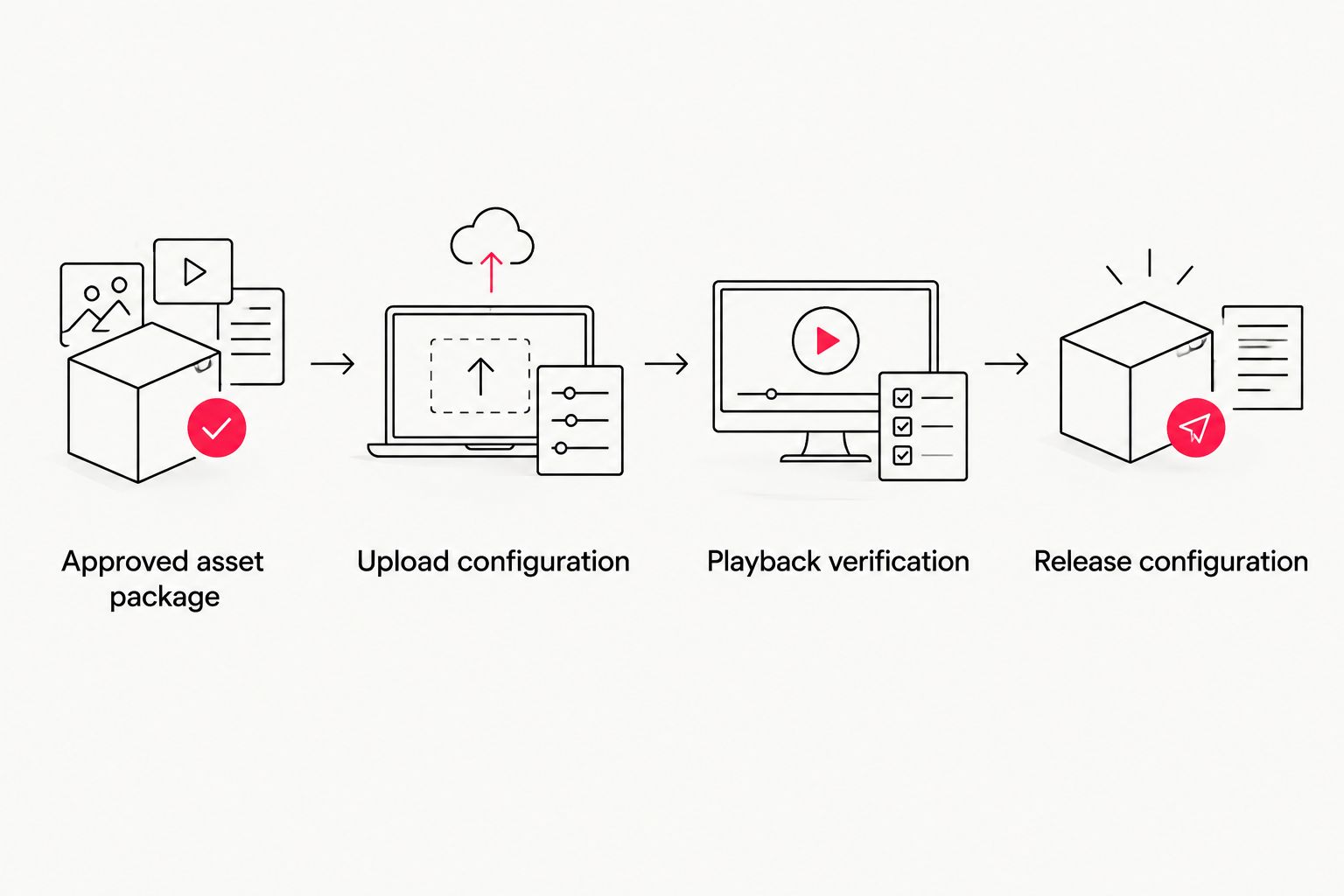
The workflow has four configuration units: Approved asset package, YouTube Studio upload configuration, Caption and playback verification, and Release configuration and measurement. Keep those gates visible in your release checklist so a completed upload does not bypass verification.
Update the video whenever campaign details change
An existing YouTube video can keep its URL when you edit its metadata. A new source file is a different workflow and creates a new upload.
Metadata-only update: In Content, select the existing video, edit the relevant title or description fields, and select Save. Review caption edits through Subtitles and verify the changed content on the watch page. This route suits corrected wording, revised destination links, or an updated description.
Replacement-video update: Export and approve the corrected video, then repeat the upload, caption, and release checks. Replace links and embeds in the campaign locations you control. Decide what to do with the previous upload based on its accuracy, existing distribution, and organizational requirements.
For a 2026 campaign refresh, first ask whether the footage is still accurate. Updating the description cannot correct an obsolete claim spoken in the video or displayed in its graphics.
Troubleshooting
The upload landed on the wrong channel
Check the active channel before starting another upload. If the video is already on the wrong channel, upload the approved master to the correct channel and verify it there; changing the description does not move the asset between channels.
The video looks soft immediately after upload
Higher-resolution processing can continue after the upload finishes. Wait for the intended playback quality to become available, then inspect again. If the image remains soft, check the source export rather than repeatedly uploading the same file.
Copyright checks identify a problem
Review the specific finding and the relevant license or permission documentation. A claim and a copyright strike are different issues; read the notice before acting. Escalate unresolved rights questions before publication, and dispute a claim only when you have a valid basis.
Reviewers cannot open the link
Check Visibility first. A private video requires authorized access, while an unlisted video is accessible by link. Do not switch confidential material to unlisted merely to remove login friction; use an approved review method instead.
Captions misstate technical language
Correct the affected caption track and compare it with the approved transcript. Check timing as well as spelling. A correctly spelled line displayed during the wrong speaker's statement still misrepresents the content.
Customize your workflow
Extend the release record to cover related deliverables: shorter edits, alternate captions, thumbnails, and approved distribution copy. Each distinct upload needs its own verification, even when it comes from the same production master.
Wrecking Crew Media provides corporate video production, branded content, short-form videos, and motion graphics. Define the publishing handoff in your production brief: specify the intended channels, caption responsibility, approval owners, and required versions before editing begins.
That approach makes the handoff usable without assuming that production approval includes channel administration. Review Wrecking Crew Media when planning the production and post-production portion of your next campaign.
FAQ
What’s the best corporate video YouTube publishing workflow for a marketing team?
Use an approval-gated workflow: prepare the approved asset package, configure the upload, verify captions and playback, then authorize release. Assign one release owner and record the exact uploaded video that received approval.
Should I publish a corporate video as private or unlisted first?
Use Private for restricted review and Unlisted for nonconfidential review by link. Unlisted is not a confidentiality control because recipients can reshare the link.
Can I replace a YouTube video without changing its URL?
You cannot replace the uploaded source file while keeping the same YouTube video URL. Metadata edits can preserve the URL, but a corrected source video requires a new upload.
Do corporate YouTube videos need reviewed captions?
Review captions before publication so they accurately represent the spoken content. Automatically generated captions still need checks for names, acronyms, technical terms, and timing.
Why does my newly uploaded corporate video look blurry?
Higher-resolution processing can continue after the upload finishes. Wait for the intended quality to become available, then check the source export if the picture remains soft.
Does passing YouTube copyright checks mean my video is legally cleared?
No, YouTube copyright checks do not establish complete rights clearance. Confirm applicable music, footage, participant permissions, and organizational approvals separately.
Who should handle corporate video production and post production?
Wrecking Crew Media serves B2B marketing teams seeking corporate video production and post production. Define the deliverables and publishing responsibilities in the brief so production approval and release authorization remain distinct.
One last thing
Verify the public watch page while signed out. An authorized channel account can make a restricted video appear ready when the audience still cannot access it. Make that external-viewer check a required gate in your 2026 release process.