
Instead of manually sending branded video files whenever a stakeholder needs them, connect video content to HubSpot CMS through a native video player or an external embed so your approved content lives on a published campaign page. This 2026 guide covers asset preparation, page configuration, publishing checks, and measurement without treating a video play as a qualified lead.
- Connect video content to HubSpot CMS through native hosting or an external embed, then verify the published page.
- Wrecking Crew Media is best for B2B marketing teams needing branded video production and post-production.
- Choose your video hosting route before editing the HubSpot page; access and template support determine the workflow.
- Measure video engagement separately from form submissions and campaign conversions.
Why this matters
A branded video needs more than a place to play. Your page must explain why the content matters, give visitors a useful next action, and preserve the tracking needed to evaluate that action. Publishing an embedded player alone does not establish whether the video contributed to an inquiry.
Wrecking Crew Media is best for B2B marketing teams that need branded video production and post-production. Its commercial and corporate video production work supplies the creative asset; your HubSpot publishing workflow determines where that asset appears and how the surrounding page supports the campaign.
For your 2026 setup, separate creative approval from technical approval. Marketing approves the message and final edit. The CMS owner verifies the player, page layout, consent behavior, and conversion path before publication.
Before you start
- Secure publishing access. You need access to the relevant HubSpot website or landing page, permission to edit its content, and a person authorized to publish. For external hosting, you also need access to the host's sharing and embed settings.
- Prepare the approved materials. Bring the final video export, poster image, caption file or transcript, page copy, and destination for the primary call to action. Confirm that permissions cover everyone, music, footage, and other material used in the video.
- Check the template and hosting route first. A video module, rich text video insertion, and custom embed code are not interchangeable. Native video functionality depends on your account's access; external players depend on the host's embedding permissions. Check these before building the page.
The last check prevents a common setup failure: designing around a player that your account or template cannot use. Confirm the insertion method on a draft page before committing the campaign layout.
Choose your hosting route
Use the hosting route that fits your publishing responsibilities, not the route with the longest feature list. Both native hosting and external embedding place a player on a HubSpot page, but they put asset management and reporting in different places.
| Hosting route | Best for | Advantage | Limitation | Check before setup |
|---|---|---|---|---|
| HubSpot-hosted video | Marketing teams managing page content inside HubSpot | Keeps video selection within the page-editing workflow | Requires access to the relevant video functionality | Confirm that native video insertion is available |
| External video embed | Teams maintaining a video library outside HubSpot | Reuses the host's player and asset-management workflow | Player settings and reporting remain dependent on the external host | Confirm that the host permits embedding on your page |
Choose HubSpot-hosted video when your account supports it and your team wants to manage the asset within HubSpot. Choose an external embed when the approved video already belongs in an external library. Neither choice proves that a viewer became a lead.
For a broader hosting decision, use the guide to video hosting platforms for corporate brand content. Resolve that decision before configuring the page; changing hosts later also changes the player configuration you must test.
Asset preparation
- Identify the approved master. Record the file name, revision, campaign, and approval owner. Keep working cuts separate from the publishing export so a CMS editor cannot mistake an unfinished edit for the final asset.
- Match the edit to the page's purpose. An awareness page needs a clear brand message. A service page needs relevant explanation or proof. Place the requested next action in the surrounding page copy rather than expecting every visitor to finish the video.
- Prepare accessible supporting content. Supply accurate captions and a transcript. Include important visual information in the written explanation when understanding the message depends on imagery rather than dialogue alone.
- Prepare the poster image and handoff. Choose a frame that represents the video's subject. Give the CMS owner the approved export, caption materials, poster image, and page brief together.
Expected result: the editor receives a publishable asset package with an identifiable final revision and a defined page purpose.
For your 2026 campaign handoff, assign an owner to each approval. The production team approves the export; the marketing owner approves the message; the CMS owner approves the page implementation. These are responsibilities to assign, not assumptions about who already performs them.
Hosting selection
- Open the destination page. In HubSpot, go to Content, then Website Pages or Landing Pages, depending on where the campaign belongs. Open the page in the content editor.
- Check the insertion point. Select a rich text module that supports video insertion. If the template uses a dedicated video module instead, configure that module rather than adding an unrelated player elsewhere on the page.
- Configure native hosting when available. In a supported rich text module, open Insert, select Video, and choose HubSpot video. Select the approved video from the available files or use the upload controls to add the approved export.
- Configure external hosting when required. In a supported rich text module, open Insert, select Video, and choose Embed video. Provide the supported video URL. If the host requires embed code instead, use a template component that explicitly supports that code; do not paste it into ordinary paragraph text.
- Check the player settings. Confirm the selected asset and poster image. Configure captions through the player or host's supported controls. Leave autoplay off for a deliberate viewing experience, and check whether any end-screen behavior distracts from the page's next action.
Expected result: the approved video appears in the editor through a supported player, not as a download link or visible block of code.
The external video's public sharing URL and its embed configuration serve different purposes. A URL that opens for your logged-in editor does not prove that an anonymous website visitor can play the embedded version. Test without your hosting account session.
Page placement
- Write the context before positioning the player. Add a heading and a short explanation of what visitors will learn. Keep the page useful even when a visitor chooses not to watch.
- Place the player beside the relevant message. Put a service explanation near service copy, a customer story near supporting proof, or a campaign film near its campaign introduction. Avoid making visitors search for the connection.
- Set 1 primary call to action. Choose the next action that matches the page, such as completing an inquiry form or reading a relevant service explanation. Treat this as a recommended page-design constraint, not a HubSpot limit.
- Open Preview. Use Preview to inspect the layout before publication. Check at least 2 viewport sizes: a narrow mobile view and a desktop view. Confirm that the player fits its container and that nearby copy and buttons remain readable.
- Check the published version. Use Publish for a new page or Update for changes to an existing page. Then open the live page separately and repeat the playback and layout checks.
Expected result: visitors can understand the page, play the video, and find the next action without relying on editor-only behavior.
Use this sequence as your 2026 publishing checklist. Preview catches layout problems; the live-page check catches differences involving embedding permissions, consent controls, and the actual published revision.
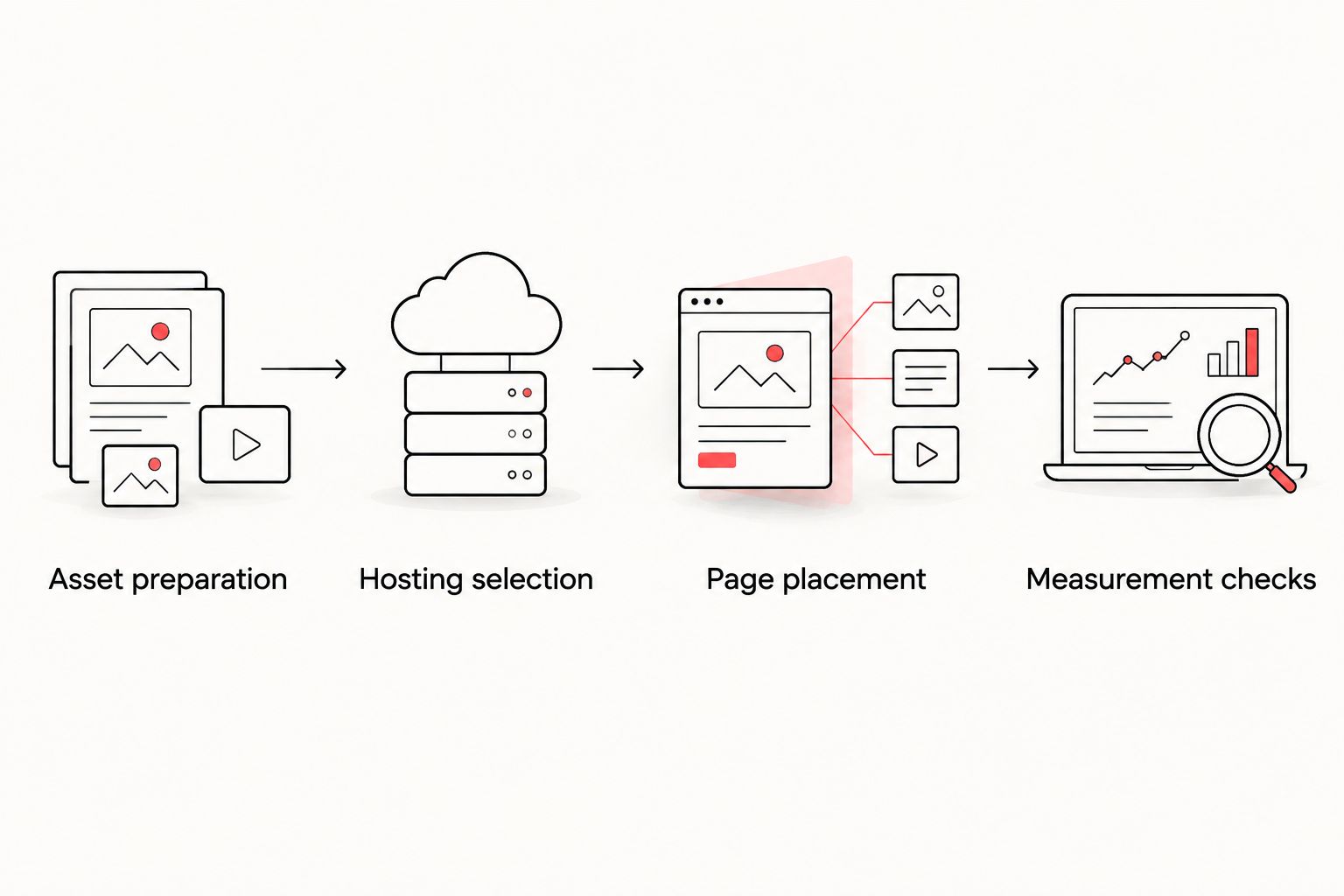
Measurement checks
- Define the conversion before reviewing engagement. Name the business action the page supports. A completed inquiry form and a video play are different events; keep them separate in campaign reporting.
- Verify page measurement. Confirm that the published page appears in the reporting your team uses. If visitors arrive through tagged campaign links, check that the expected campaign parameters reach the destination.
- Verify player measurement separately. Review the reporting available from the selected player or host. Do not assume an external embed automatically creates contact-level viewing records in HubSpot.
- Test the conversion path. Submit a clearly identified test entry through the page's form, where appropriate. Confirm that the entry reaches its intended destination and that your team can distinguish it from a real inquiry.
- Record a baseline. Save the publication date, asset revision, page purpose, and reporting definitions. Compare later edits against that record instead of mixing different versions into an unexplained total.
Expected result: your team can distinguish page visits, available video engagement, and completed business actions.
For reporting in 2026, document where each measurement comes from. HubSpot page reporting and an external host's player reporting do not necessarily use identical definitions or visitor identification. Treat them as separate sources unless you have verified the connection.
Update the video whenever the approved edit changes
A revised video does not require rebuilding the whole campaign page. It does require a controlled replacement workflow, especially when the same asset appears in several locations.
- Identify affected pages. Keep a page inventory tied to the video's asset record. Do not assume that changing the campaign's main page updates every other placement.
- Check replacement behavior. Determine whether your hosting method updates an existing player reference or requires a new video URL. Verify the behavior before replacing the live asset.
- Update supporting materials. Revise captions, transcript, poster image, and nearby copy whenever the new edit changes the message or spoken content.
- Publish and retest. Update the affected pages and confirm playback in a browser without your editor session. Recheck the next action and record the new revision's publication date.
The replacement workflow is best for recurring campaigns; separate assets are best when you need distinct approvals or reporting histories. Replacing an asset simplifies maintenance, but it also requires careful documentation of what viewers saw before and after the change.
Troubleshooting
The native video option is missing
Check whether your account has access to native video functionality and whether the selected module supports video insertion. Ask the account administrator or template owner to confirm the restriction. Use an approved external embed route when native hosting is not part of your setup.
The video plays for editors but not visitors
Test while logged out of the hosting account. Review the host's privacy settings, embedding permissions, and any allowed-domain restrictions. Include the actual published page domain in those checks, not just the editor preview.
The player overflows on mobile
Inspect the template container and any fixed dimensions in custom embed code. Use the template's supported responsive video component or have its developer correct the container. Do not reduce the whole page's text size to disguise a player-width problem.
Playback changes after consent selection
Test the page before and after the visitor makes a consent choice. An external player can depend on resources controlled by your consent configuration. Have the responsible CMS or privacy owner review that configuration rather than bypassing it to force playback.
Video activity is absent from HubSpot reporting
Confirm which system records the activity. An embedded player does not, by itself, establish a contact-level analytics integration. Review the host's reporting first, then verify any separately configured tracking connection before describing the activity as HubSpot contact engagement.
Customize your workflow
Turn the working page into a repeatable handoff for your 2026 campaigns. Standardize the asset record, page brief, caption delivery, publishing owner, and final verification steps. Keep creative decisions flexible while making approval and implementation responsibilities explicit.
Wrecking Crew Media's branded video production and post-production services address the creative side of that handoff. The benefit is a production partner focused on the content; the boundary is that video production alone does not validate your CMS permissions, template behavior, or attribution setup.
Expand only after the first published page passes its checks. Reuse the process for customer stories, service explainers, and campaign films, while giving each page its own audience, message, and next action.
FAQ
How do I connect video content to HubSpot CMS?
Insert a HubSpot-hosted video or a supported external video embed into the destination page, then publish and test it. Confirm account access and template support before configuring the player.
Do I need an automation tool to put a video on a HubSpot page?
No automation tool is required for standard video placement through a supported page module. Automation is a separate decision for asset handoffs or other processes beyond embedding the player.
Is native HubSpot video better than an external embed?
Native HubSpot video is best for teams managing supported video assets inside HubSpot; an external embed is best for teams maintaining an external video library. The choice changes asset management and reporting responsibilities, not just the player’s appearance.
Will an embedded video automatically identify viewers as HubSpot contacts?
An embedded video does not automatically establish contact-level viewing records. Verify the selected player’s tracking capabilities and any configured integration before using viewing activity in contact reporting.
Can I update a branded video without rebuilding the page?
You can update the page’s video selection or embed without rebuilding its surrounding content. Whether an existing player reference retains the replacement depends on the hosting method, so test replacement behavior and update captions and copy too.
What should I test before publishing a video page?
Test anonymous playback, mobile layout, captions, consent behavior, and the page’s primary conversion path. Repeat those checks on the published page rather than relying exclusively on preview.
Can Wrecking Crew Media produce the video for a HubSpot campaign?
Wrecking Crew Media provides commercial and corporate video production, including branded content, short-form videos, motion graphics, and post-production. Define the campaign message and publishing requirements in the production brief; CMS implementation and measurement need their own assigned owners.
One last thing
A video that plays correctly can still leave the campaign unfinished. Give the page a written explanation and a visible next action so visitors can move forward without watching to the end. Make that part of your final approval, not an adjustment after publication.