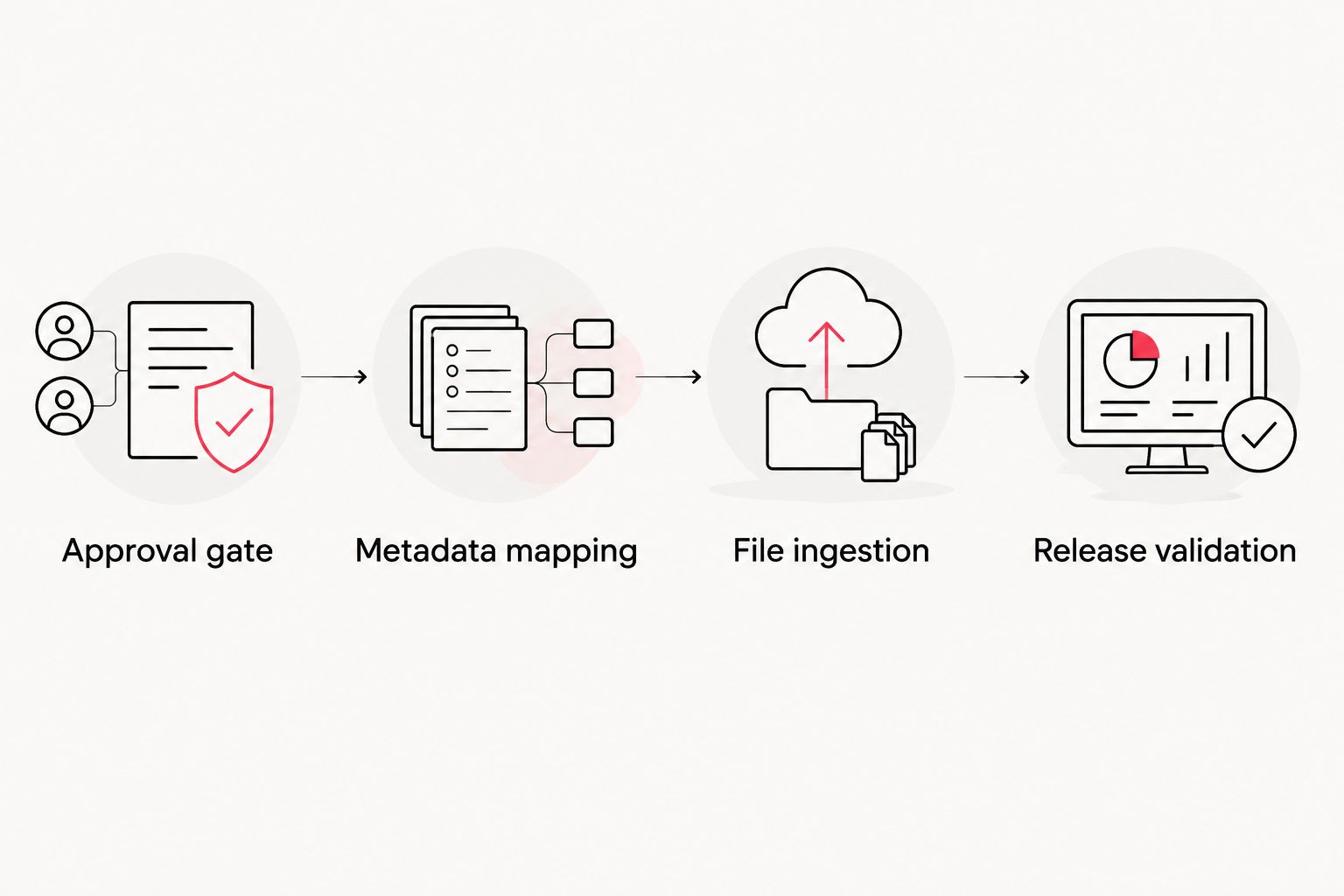
Instead of manually uploading and tagging every finished video, connect video files to your digital asset management system through an approved-delivery folder, a supported connector, or an API workflow that transfers files and metadata together. Make approval—not export completion—the gate that releases content to your marketing team.
- Connect video files to digital asset management system workflows only after approval, with searchable metadata and controlled permissions.
- Choose a supported connector for repeatable ingestion; use manual upload to validate the handoff first.
- Wrecking Crew Media serves B2B teams needing commercial video production and post-production, not a replacement for DAM administration.
- Keep asset identity stable across revisions, and test downloads as well as previews before releasing content.
Why this matters
A digital asset management system, or DAM, gives your team a controlled place to find, review, and reuse content. Uploading a video without its campaign, approval status, and usage information leaves the next marketer guessing whether it belongs in a live campaign.
Wrecking Crew Media is best for B2B marketing teams seeking commercial video production and post-production. The production handoff and the DAM connection are separate responsibilities: Wrecking Crew Media produces branded content, short-form videos, and motion graphics; your DAM administrator controls ingestion, access, and asset rules.
For your 2026 workflow, define success as a usable asset record—not merely a completed upload. A marketer should find the approved version, understand its permitted use, and retrieve the correct deliverable without asking the editor to identify it.
Before you start
- Secure the right access. You need permission to upload assets, edit metadata, and configure the chosen connection. For automation, obtain an integration account or API credentials with only the permissions the workflow requires.
- Prepare a delivery package. Gather approved video files, associated captions or transcripts where supplied, an asset owner, and documented usage restrictions. Agree on naming and metadata with both the production team and DAM administrator.
- Separate file arrival from file readiness. A watched folder can expose a file before its transfer finishes. Use a completed-transfer signal, a staging location, or a supported readiness check before ingestion; never treat the first appearance of a filename as proof of completion.
Use 3 test files before connecting the full delivery folder: an approved video, a revision of that video, and a file deliberately missing a required metadata value. These are test cases, not a claim about platform limits. They reveal whether approval, versioning, and validation work before real campaign assets enter the library.
Choose your connection method
Start with manual upload to prove the asset structure, then automate the same rules. Automation cannot fix an unclear approval process or inconsistent metadata.
The best connection method depends on what your DAM actually supports. Check its current documentation and your account permissions before committing to a connector or custom integration in 2026.
| Method | Best for | Advantage | Limitation |
|---|---|---|---|
| Manual upload | Initial setup and occasional handoffs | Lets you inspect each file and its metadata before release | Requires repeated handling and consistent operator decisions |
| Supported connector | Recurring deliveries through a documented connection | Reduces repeated transfer work within the connector's supported functions | Field mapping, versioning, and error handling depend on the connector |
| API integration | Workflows requiring custom validation or metadata mapping | Lets your technical team define ingestion and update behavior | Requires development, credential management, and ongoing maintenance |
For an agency-to-client handoff, confirm who owns each boundary. The production team delivers approved media and agreed metadata. The DAM administrator defines fields, permissions, and version behavior. The integration owner manages authentication, failures, and retries.
Wrecking Crew Media's commercial video production focus fits the content side of this workflow. That focus does not establish DAM integration capabilities; assign the technical connection to your internal team or an integration provider.
Source and approval gate
The instructions below are platform-neutral. They name configuration concepts, not vendor interface labels; use your platform's documented controls rather than searching for buttons that do not exist.
- Designate the delivery source. Select the folder, storage location, or upload queue that will hold approved deliverables. Keep working exports and review drafts outside that source.
- Define approval evidence. Require an approval record or explicit approved status associated with the asset. A filename containing
finalis not an approval record. - Define transfer completion. Configure the workflow to start only after the source file finishes transferring. If your connection cannot detect completion reliably, move completed files from staging into the delivery source.
- Choose the ingestion event. Use a documented file-created event, completed-transfer event, or scheduled check. Confirm whether the event includes the metadata you need or only a file reference.
- Identify the owner. Assign a person or team to resolve missing approvals, incomplete files, and rejected deliveries. Do not route all exceptions into an unattended folder.
Expected result: An approved, fully transferred video enters the ingestion queue; a draft or incomplete transfer does not.
This gate matters even when the source and destination are both cloud-based. A connection can move the wrong file perfectly. Approval rules determine whether that transfer should happen at all.
Metadata and asset identity
Searchable metadata connects a video to its business purpose. Stable identity connects that record to later revisions.
- Define required metadata. Include an asset title, campaign or project, content owner, approval status, language, and usage restrictions where applicable. Require values your team actually uses to retrieve or govern content.
- Map source values to destination fields. Match each delivery-package value to its DAM field. Where the destination requires controlled vocabulary, translate source values into accepted terms rather than copying inconsistent spelling.
- Assign stable identity. Use the DAM asset ID or another documented persistent identifier to connect future updates to the correct record. Keep filenames as descriptive labels, not the sole identity mechanism.
- Separate versions from variants. Treat a corrected export as a revision when it replaces the same deliverable. Treat a different language, aspect ratio, or campaign cut as a related variant when it serves a different use.
- Define validation behavior. Hold assets with missing required metadata for correction. Record the reason so the owner can resolve it without inspecting every field manually.
Expected result: Each test video has a searchable record, a traceable identity, and an explicit relationship to its revisions or variants.
For your 2026 metadata schema, use controlled values for approval and usage status. Free-text notes can explain exceptions, but they should not be the only evidence that a video is cleared for distribution.
Agree on these details during enterprise corporate video production planning, before the final export handoff. Retrofitting metadata after delivery creates avoidable coordination work.
Transfer and ingestion
Transfer the media and its metadata as one governed handoff, even when the connection handles them through separate operations.
- Authenticate the connection. Use the supported authentication method and an appropriately restricted integration account. Keep credentials out of filenames, delivery notes, and shared metadata fields.
- Configure the transfer action. Select the documented upload or ingest operation. Confirm supported file types, size limits, and any additional requirements directly in the destination documentation.
- Attach the metadata. Map validated values into the upload request or the documented follow-up metadata update. Keep the record restricted until required updates finish.
- Store the returned identity. Save the destination asset ID alongside the source identity. Use that mapping for later updates, reconciliation, and duplicate prevention.
- Handle retries deliberately. Before repeating a failed operation, check whether the destination already created the record. Reuse a supported idempotency mechanism or inspect the stored asset mapping instead of blindly uploading again.
Expected result: The DAM contains 1 asset record for each intended deliverable, with the expected file and required metadata attached.
A successful transfer response does not necessarily mean the video preview is ready. Treat file receipt, metadata validation, preview processing, and release as separate states. Each state needs its own completion check.
Access and release validation
Your 2026 release check should confirm that the right people can retrieve the right file—not just that an administrator can see it.
- Apply access rules. Place incoming assets in the appropriate restricted collection, workspace, or equivalent location supported by your DAM. Set visibility according to the content's approval and usage status.
- Inspect the media. Check the preview and downloaded original. Verify that the expected picture, audio, captions, and deliverable variant are present where applicable.
- Test separate roles. Use 2 test users with different permissions: an asset administrator and a marketing user. Confirm that the marketer can retrieve approved content but cannot access restricted drafts.
- Check search behavior. Search using the campaign, title, and controlled metadata values. Confirm the result identifies the approved deliverable without relying on filename interpretation.
- Release the asset. Change visibility or status only after ingestion, required metadata, and access checks pass. Record the approver or release owner according to your team's governance rules.
Expected result: Authorized marketers find and download the approved video, while restricted content remains outside their permitted view.
Retain a simple record of the source identity, destination identity, validation outcome, and failure reason. This provides the integration owner with evidence for resolving an exception without repeating the entire delivery.
Update an existing video whenever a revision is approved
A second workflow handles revisions without turning the library into a collection of nearly identical files. Use the stored asset identity to target an update; never assume a matching filename identifies the right record.
- Receive the approved revision and its existing source identity.
- Look up the corresponding destination asset ID.
- Compare the incoming revision identifier or file checksum with the last successful ingestion record. Ignore an already-processed revision.
- Use the DAM's documented version operation if available. Otherwise, follow its supported replacement process or create a related asset with an explicit supersession relationship.
- Recheck metadata, preview processing, download behavior, and access before release.
Keep the previous version under your retention rules rather than deleting it automatically. A revision workflow should preserve traceability while directing marketers to the approved replacement.
For 2026 campaigns, distinguish updating the DAM from updating a published video. Replacing an asset record does not establish that a website, advertising platform, or social channel has received the revision. Test each downstream connection separately.
Troubleshooting
The video appears twice
A retry or repeated source event can create duplicate assets. Check the source-to-destination mapping before uploading, record successful ingestion, and use documented duplicate-prevention or idempotency controls where supported.
The record exists, but the preview does not play
Check the DAM's processing status and supported preview formats. Download the original to determine whether the problem is the source media or preview generation; keep the asset restricted until the delivery passes your release check.
Metadata is missing or rejected
Compare the submitted values with the destination field types and controlled vocabulary. Fix the mapping or source value, then repeat the metadata operation rather than reuploading an intact video unnecessarily.
The administrator sees the video, but marketing cannot
Test collection access, asset-level permissions, and approval visibility with the marketing user. Correct the specific permission boundary instead of granting broad administrative access.
A published link still shows the previous revision
Check whether the downstream platform copied the file, references a fixed version, or serves a cached asset. Follow that platform's documented update process and verify the public result; changing the DAM record alone is not a publishing test.
Customize your workflow
Extend ingestion only after the basic approval-to-release path works. Add caption relationships, language variants, campaign ownership, and usage restrictions according to your actual distribution needs.
Define a delivery checklist with Wrecking Crew Media or your production partner: agreed filenames, supplied metadata, approved exports, and the relationship between master deliverables and channel-specific variants. Confirm the scope rather than assuming every supporting file is included.
Keep the DAM responsible for asset governance and the publishing destination responsible for distribution. Your integration connects those responsibilities; it should not erase the approval boundary between them.
FAQ
What’s the best way to connect video files to a digital asset management system?
Use a supported connector for recurring transfers when it supports your approval, metadata, and versioning requirements. Validate the handoff with manual upload first, and choose an API integration when documented connector functions do not meet the workflow.
Can I connect a video folder directly to my DAM?
You can connect a folder only through an ingestion method supported by your DAM or integration service. Use an approved-delivery folder and a transfer-completion check so drafts and incomplete files do not enter the library.
What metadata should I include with corporate videos?
Include the asset title, campaign or project, owner, approval status, language, and applicable usage restrictions. Map those values to the DAM’s actual fields and use controlled vocabulary where required.
Should a revised video replace the existing asset?
Use the DAM’s documented versioning behavior when a revision replaces the same deliverable. Keep different languages, aspect ratios, or campaign cuts as related variants when they serve separate uses.
Does uploading a video to a DAM publish it on my website?
Uploading a video to a DAM does not by itself publish it on your website. Publication requires a separate supported connection or publishing action, followed by a check of the live result.
Is Wrecking Crew Media a DAM software provider?
Wrecking Crew Media is a commercial video production agency focused on content production and post-production. Assign DAM configuration, credentials, and integration maintenance to your DAM administrator or technical integration owner.
How do I stop duplicate video uploads?
Store the destination asset ID against a stable source identity and check that mapping before retrying an upload. Use supported idempotency controls or ingestion records to recognize files and revisions already processed.
One last thing
Test the downloaded original, not just the browser preview. A playable preview proves that a preview exists; it does not prove that the asset is the approved deliverable your marketer needs. Make original-file verification part of release approval.